 CARIS HPD Paper Chart Editor
 CARIS HPD Paper Chart Editor
Menu | File > New > HPD Atlas |
Tool |
|
Create a new Atlas. No other chart or Atlas need be open to create a new Atlas. All Atlas components are saved to the database.
An Atlas can only be created and edited by persons with a Paper Chart Editor role. |
Related commands
• • • | • • • |
Procedure
1. Select the New Atlas command.
If you are not logged into the database, the database dialog box is displayed.
2. Log into the database if necessary.
The Select Project dialog box is displayed.
3. Select a project and click OK.
The New Atlas layer is displayed in the Layers window.
4. Select the New Atlas layer.
The Object Browser window is opened.
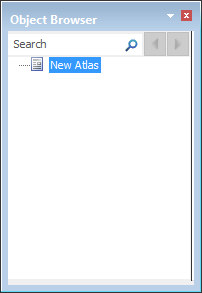
The New Atlas layer is displayed. The Atlas layer is the parent layer for all files and charts in the book.
5. Set any of the following attributes in the Attributes window.
Attribute | Description |
|---|---|
Name | Name of the Atlas. The default name is always “New Atlas”. When the name is changed, the new name is displayed in Object Browser window. Type a new name in the field and press <Enter>. |
Edition | Edition number for the Atlas book. Type an edition number in the field and press <Enter>. |
Destination | Folder where the exported files are saved. Click Browse to select a folder for saving the files. |
Published Date | The date that the Atlas book is published. This field is greyed out until the Atlas is published. |
Export Type | Either PDF or TIFF. When an export format is selected, additional options are displayed for the chosen format. Select either PDF or TIFF. See below for more information on these formats. |
The following parameters can be set if PDF is selected.
Parameter | Description |
|---|---|
Output Resolution | The DPI size for images that are exported with the sheet. Type a value in the field. |
Render text as curves | Print text as vector curves instead of as pixels. This option is useful if the chart contains fonts that are not on your printer or plotter. Note: This option is not available for raster charts or charts with a dynamic masking portrayal. Click the check box to change the value from True to False. |
Trim Marks | Add trim marks to a sheet as guides to trimming oversized sheets. Click the check box to change the value from True to False. |
TIFF
The following parameters can be set if TIFF is selected.
Parameter | Description |
|---|---|
Image Resolution | Image resolution of the TIFF in Dots-Per-Inch (DPI). Type a value. |
Colour Mapping1 | The RGB2CMYK file is an XML file that defines specific RGB values for colour tokens. If no file is selected then the application will automatically map colours to a matching token. The file is stored in the same location as the image and has .rgb2cymk extension. An existing file can be used to map colours. This will overwrite the automatically generated file. Click Browse to select an existing RGB2CMYK file. |
Output Template | Use an output template file to determine what layers are included in or omitted from an exported chart. For more information see Output Templates. Select a file from the list or select |
1 Any colour for which there is no direct match in the colour mapping file (e.g ih_colour.xml) is mapped to an .rgb2cmyk file that is saved in the same location as the TIFF file. You can use this mapping file to update the colour mapping file if necessary.
