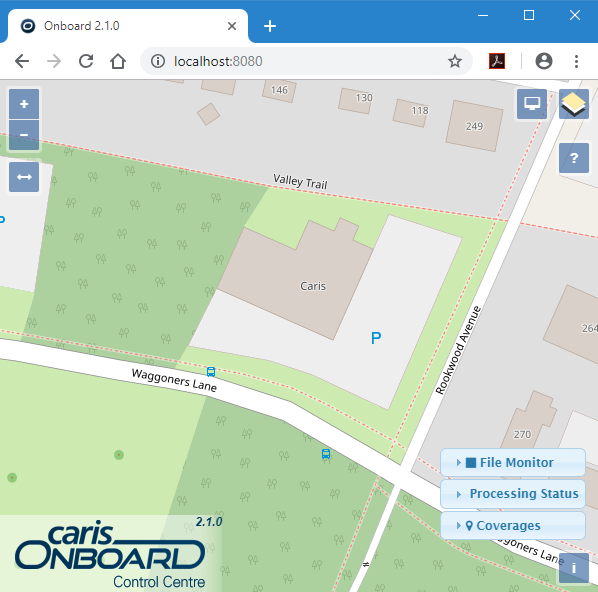
Two methods are available for opening CARIS1 Onboard TM Control Centre:
• from Onboard Viewer
• from a web browser
To open Control Centre from Onboard Viewer:
1. Launch the Onboard Viewer application from the Windows Start menu.
2. Select the Tools > Launch Onboard Control Centre command.
Control Centre will be opened in the default web browser using localhost as the URL and the port number defined in Tools > Options.
To open Control Centre from a web browser:
1. Open a web browser.
2. In the address bar, enter http://<hostname>:<portnumber> where:
• <hostname> is replaced with the name of the host computer. If you are accessing the application using a browser on the host system, <hostname> can be replaced with localhost.
• <portnumber> is replaced with the port number being used to connect to the Onboard service. The default port is 8080. If this port is already used by another service, it can be changed in Tools > Options.
Control Centre is opened in the browser.
If the computer has an internet connection, there will be an automatic connection to OpenStreetMaps®, centred on the current location of the computer. If no internet connection is available, it will display the Onboard controls with either a blank screen or the base map that is available for download from the Teledyne CARIS Customer Services website. In order for survey data to be included in the display, the Control Centre must be configured. Refer to Configuring Onboard: File Monitor Panel for information on how to configure the application.
Note the version number of the application found in the bottom-left corner of the display. This information is needed if you require assistance from Teledyne CARIS Customer Services.

1 This term is a trademark of Teledyne CARIS Reg. USPTO and CIPO.