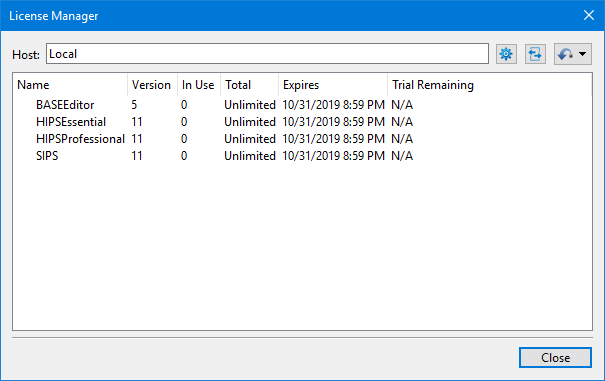
Menu | Help > License Manager |
The License Manager tool is used to view and manage the license associated with the installation of a Teledyne CARIS application.
To run a Teledyne CARIS application, a license must be activated and associated with each installation. Both local and network licenses are supported. A local license is specific to the single computer on which it is activated, while a network license can be used by any machine connected to a license server with licenses available.
A network commuter license is also supported. This is a network license that can be checked out and used as an offline local license for a defined length of time. Refer to the CARIS Licensing Guide for information on commuter licenses.
The first time an application is run, a wizard is automatically launched to set up the license that will be used on the current machine. The License Manager provides the details of this license, but can also be used to change the license settings if they require changing after the initial setup.
The information provided in the License Manager includes:
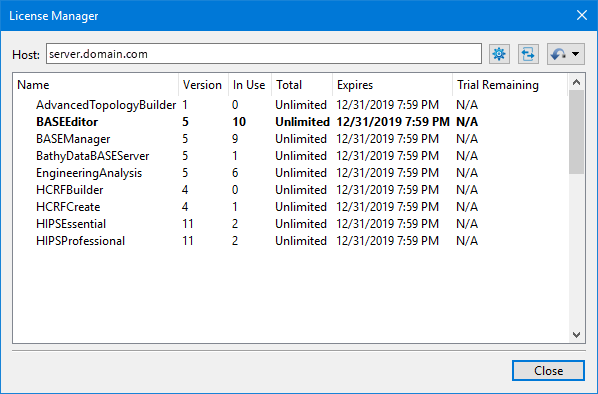
• Host: the name of the computer housing the license in use. For a local license, this will be populated as “Local”; for a network license, it will be populated with the license server in use.
• Name: the names of the modules included in the license
• Version: the versions of the modules
• In Use: the number of work stations currently using the license
• Total: the number of seats available with the license; this will be 1 for a local license
• Expires: the expiry date of the license
• Trial Remaining: the number of days remaining in the trial if a trial license is being used
The license Host setting is saved in the environment.xml file found in C:\ProgramData\CARIS\Onboard\2.1\System. Changing this setting will update the .xml file and automatically restart the Onboard Service to apply the changes.
When a network license is being used, the list of items available on the server may include items that are not available with the current license. In this situation, the items included in the current license will be displayed in bold.
The Configure Licenses (gear) button ( ) in the top-right corner of the License Manager dialog box launches the License Setup wizard.
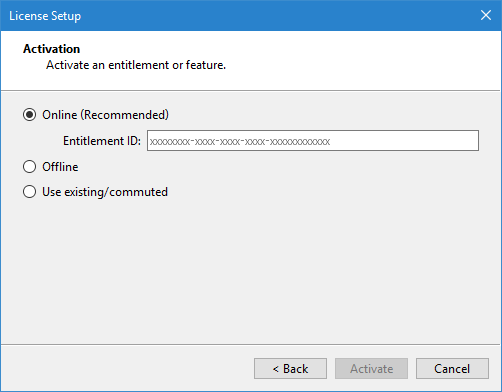
This is the same wizard that is provided the first time the application is started. Launching the wizard from the License Manager allows the license settings to be viewed and/or changed at any time after the initial run of the application.
If changes are made to the license settings, the application must be restarted to apply the changes.
The Manage Commuter Licenses button ( ), also in the top-right corner of the dialog box, launches the Commuter License Setup wizard.
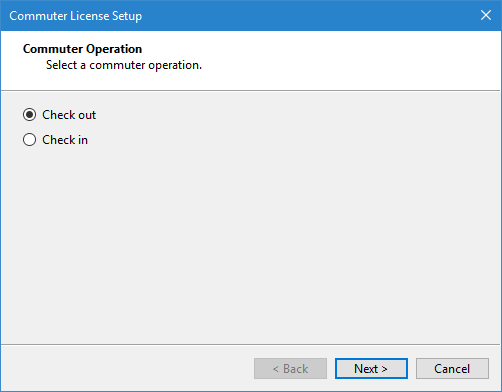
This wizard is used to check in and check out commuter licenses.
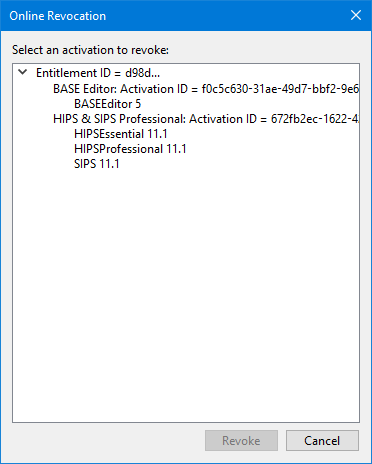
The Revoke local license button ( ), also in the top‑right corner of the dialog box, launches the revocation tools used to revoke a license activation from the local computer.
Refer to the CARIS Licensing Guide for more information on license settings.