Menu | Tools > Editors > Subset > Surface Filter |
Tool |
Subset Editor toolbar |
Menu | Tools > Editors > Subset > Surface Filter |
Tool |
Subset Editor toolbar |
You can load a surface and apply filtering to the full subset or to the part of the surface within the subset 2D slice. See also Filter Processed Depths
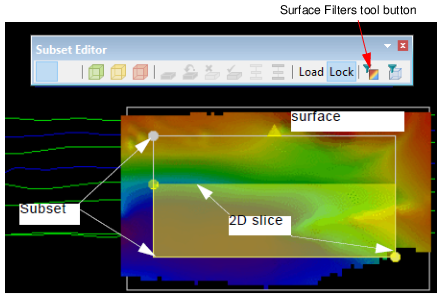
Interface
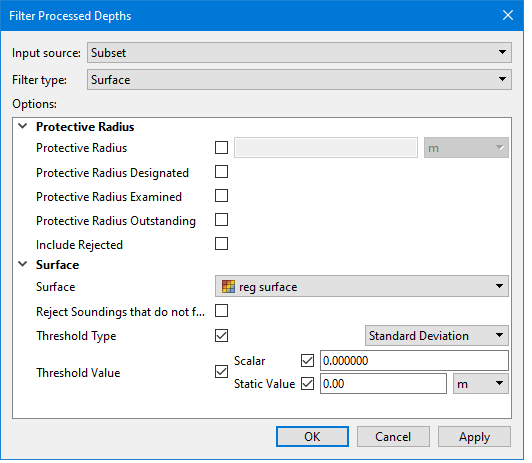
Options for surface filtering are set in the Filter Processed Depths dialog box.
Procedure
1. Open a surface.
2. From the Active Track Lines window, select a line included in the surface.
3. Open Subset Editor and define a subset over the surface. (See Open Subset Editor.)
4. Load the subset.
5. Select the Reference Surface layer in the Subset Control window.
The surface name is displayed in the Properties section of the Subset Control dialog box.
6. Expand the surface tree in the Properties window and select the Depth layer.
7. Click Load in the Subset Control window.
When the surface is loaded, the Surface Filter button on the Subset Editor toolbar and the command on the menu are activated.
8. Select the Surface Filter command.
9. In the Surface Filter dialog box, select the layer to be filtered.
10. Set options for the area to be filtered:
Filter Slice: select to only filter the surface area inside the 2D slice
Filter Full Subset: (default setting) select to filter the surface area that is within the subset bounding box.
11. . Set other options.
12. Click OK to apply the filter.
