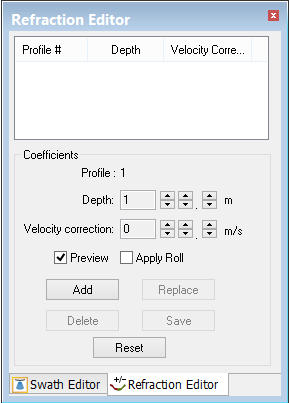
Menu | Tools > Editors > Swath > Refraction Editor |
Since it is not possible to completely control the sound speed variations in water we apply sound velocity profiles to correct for this. However, refraction artifacts may still remain, especially if incorrect or insufficient sound velocity profiles are applied either during acquisition or during post processing.
To correct for this, you could choose to limit the usable swath angle (and therefore survey more lines), or you can use the Refraction Editor, which simulates the effects of altering the SVP to derive a better refraction solution.
Since refraction errors are most pronounced in the outer parts of the survey line coverage, they tend to create characteristically curved (upward or downward) refraction artifacts.
Apply the velocity correction at a user-defined depth, and as you adjust the values, you can observe the changes in the shape of the swath profiles. When you arrive at the values which give you the desired correction, save these coefficients. Later, during the merge (Georeference Bathymetry) process, you can apply these coefficients.
Procedure
1. Select a track line.
2. Open Swath Editor, then select the Refraction Editor command.
3. Set the values for depth and velocity correction until the desired effect is observed.
4. Click Add to add the new entry to the list of coefficients.
5. Click Reset before clicking Add to set the values to their original setting.
6. To change an existing coefficient, select it, adjust the settings and click Replace to update it.
7. To remove an entry from the list select it and click Delete.
8. Click Save to save your entries.
9. Select the Preview check box to view the effects of your changes.
10. Select the Apply Roll check box to see the effects of roll on the data
Apply Roll Option
If the Preview option is selected, you can also enable the Apply Roll option. When you first open the Refraction Editor, this control is set to be the same as the setting in the Roll section of the Vessel file (HVF). This control enables you to quickly observe the effects of applying (or not applying) dynamic roll to the sounding data.
If there is no roll data, or if the appropriate Roll section cannot be found in the HVF, or if the survey line has already been sound velocity corrected, toggling the Apply Roll switch will have no effect. |
The velocity correction and depth are recorded with the current swath profile number. While paging through the track line during cleaning, new swath/correction/depth values can be recorded.
Interpolation
When you add the first Refraction Coefficient, the correction starts at that profile and goes to the end of the line with that same correction. If you add a second Refraction Coefficient after the first, the correction applied between the two profiles is interpolated. This is done so that there is no “jump” in the profile when the correction at the second Refraction Coefficient is applied to the data.
This interpolation is linear. That is, if the selected profile is between two refraction entries, the depth and delta velocity are both interpolated from these entries.
Querying
Querying the data in Swath Editor will always give the results from the display, so if you change the display with the Preview option of the Refraction Editor turned on, the query will return the results of the change. The Observed Depth data (across track, along track and depth) does not change.
The effects of the Refraction Editor can be turned on or off during Calibration. As well, the effects on the final merged depths can be modified any time by editing the coefficients and re-merging, or the effects can be removed by re-merging and choosing not to apply the coefficients.