Menu | Tools > Engineering Analysis > Shoals > Register in Database |
Tool |
|
Menu | Tools > Engineering Analysis > Shoals > Register in Database |
Tool |
|
The Register in Database command is used to register the currently selected shoals to a database. This adds the shoals to the database selected in your SRA file and the attributes of the shoals will be mapped according to the Associations settings in the SRA file. See Edit Record Association File for more information on the database settings in the SRA file.
When shoals are registered in a database, each one is assigned an ID. This ID can be customized for each registration using the ID options fields provided in the registration process. Also, the Registered attribute (shlreg) of the shoal is updated to show the registration status.
Related commands:
Interface
The Register in Database command uses the following dialog box.
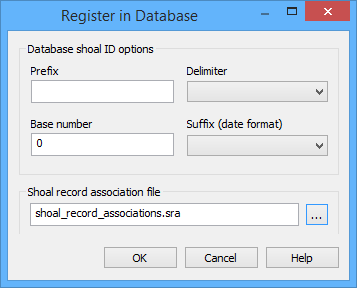
Option | Description |
|---|---|
Prefix | Letters that are added to the beginning of the shoal ID key for each shoal being registered. |
Delimiter | An optional character in the shoal ID key used to separate the shoal number from the suffix. |
Base number | The first value used after the prefix in the shoal ID key. The number added increases by one with each successive shoal. |
Suffix (date format) | The date format used if the date is included in the shoal ID key. |
Shoal record association file | The shoal record association file that defines the database in which to register the shoals and the attribute mapping rules to be applied during registration. |
Procedure
1. Select the Shoal Boxes layer in the Layers window.
2. Select the shoal box(es) in the Display window that you want to register to the database.
3. Select the Register in Database command.
The Register in Database dialog box is displayed.
4. Enter or select values for each of the Database shoal ID options.
5. Select a Shoal record association file, if necessary.
6. Click OK.
The shoals are registered in the database.
