Menu | Tools > BDB Server Database > Set Coverage |
The Set Coverage command is used to associate a coverage to an existing database object. This can be done to add a coverage to an object that is not currently associated with any data, or to replace the coverage to which an object is already associated. This command can also be used to remove the bathymetry from a database object if the associated coverage needs to be replaced, but no new data is available to replace it.
Because this operation will add or remove data to or from a database,which cannot be undone via the Undo command, the application will not allow this command to be run if there are any previous unsaved changes. If there are any unsaved changes, a message will be displayed prompting you to save your changes before continuing.
Related commands:
• Import Selected Objects to Database
Interface
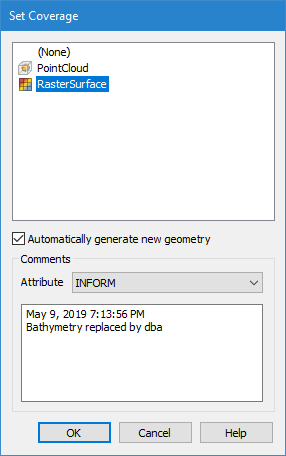
The Set Coverage command uses the following dialog box.
Option | Description |
|---|---|
Coverage list | The coverage to be associated with the selected database object. All currently open coverages are listed as available sources, including coverages opened locally from other database objects. The (None) option is used to remove the coverage from the database object. |
Automatically generate new geometry | Automatically recreate the geometry of the database object that is being associated with the coverage according to the coverage extents. This option is enabled by default, unless the (None) option is selected, in which case, this option will be disabled. |
Comments | Add a comment to the coverage as an attribute value explaining the replacement/addition of the data. The comment can added to any text-entry type attribute present in the catalogue of the database. The default comment text includes: • the date and time that the bathymetry was replaced/added • a statement that the bathymetry was replaced/added • the user that performed the action 1. Select the Attribute to be populated with the comment. 2. Edit or add text to the comment field as needed. |
Procedure
1. Open the relevant coverage.
2. Select a database filter layer in the Layers window.
3. Select the database object that you want to have associated with the coverage
4. Select the Set Coverage command.
The Set Coverage dialog box is displayed.
5. Select a coverage option from the list.
6. [Optional] Click the check box to turn on/off the automatic regeneration of the database object.
7. [Optional] Add a comment for the change.
8. Click OK.
The database object is updated with the selected change to the associated coverage data.