Menu | Tools > Coverages > TIN > Long Edges |
Tool |
|
Pop-up | TIN Editor > Long Edges (Layers window) |
Menu | Tools > Coverages > TIN > Long Edges |
Tool |
|
Pop-up | TIN Editor > Long Edges (Layers window) |
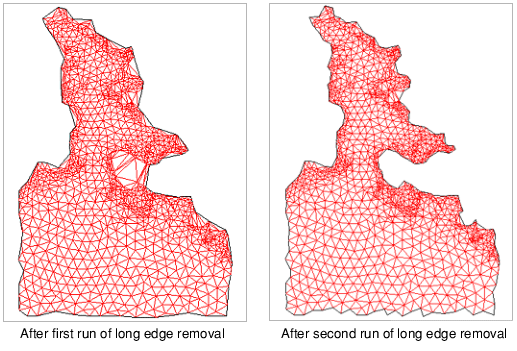
The initial TIN creation produces a convex outer hull. This means that typically long edges are added along the outside of the TIN, over areas where no express data has been collected. It may be desirable to limit the TIN to only the areas where there is true data, by removing long edges. This is particularly important if the TIN is to be cut to a geometry. Removing these long edges is an iterative process that can be run on the data as many times as needed until no hull edges extend beyond the true data coverage.
The long edge dialog can be used either to remove long edges on the exterior of the dataset or interior long edges, or to restore any long edges removed from the exterior of the dataset. Note that long edges removed from the interior of the data are actually removed through the automatic use of coverage hole features, and they can be restored by selecting the hole feature on the TIN Editor layer and deleting the feature.
Related commands:
Interface
The Long Edges command uses the following dialog box.

Option | Description |
|---|---|
Edge length histogram | The Edge length histogram provides important statistical data on the lengths of the edges in the TIN you selected. TIN edge length values are grouped together according to edge lengths. Each group is displayed as a vertical bar in the histogram at the appropriate position along the horizontal axis. The shortest edges are in the first group along the horizontal axis and the longest edges are in the last group. The frequency or count of the edge length values included in each group is displayed along the vertical axis. There are two scale visualization methods for vertical axis data: • Logarithmic: displays the number of edges in a group over progressively exaggerated vertical intervals (for example, 10, 100, 1000, etc.). The intervals are based on the natural logarithm of the frequency. • Linear: displays the number of edges in a group over constant vertical intervals (10, 20, 30, etc.). When working with data containing many edges of similar length, it is recommended that you use the logarithmic scale. |
Cursor position | This field displays the length of the edge group at the current cursor position when moving the cursor over the histogram. |
Shortest edge | This field reports the shortest edge length in the TIN. |
Longest edge | This field reports the longest edge length in the TIN. |
Mean length | This field reports the mean length of the edges in the TIN. |
Standard deviation | This field reports the standard deviation of all the line lengths. |
Remove long edges | Enable this option if the tool is being run to remove long edges. Selecting this option enables the Type and Threshold fields. |
Type | The type of edges to remove if the Remove long edges option is enabled. The options include: outer, inner or both. |
Threshold | The application determines which edges to remove based on the threshold value. The threshold value is the longest edge length you want to keep in the TIN. There are three options for defining the threshold: • Mean + 2 x standard deviation, which identifies edges to be removed using the following formula: • Mean + 3 x standard deviation, which identifies edges to be removed using the following formula: • User specified, where the user defines the longest edge length allowed, causing all edges longer than this value to be removed. This option is defined by selecting the option and then either entering a value in the field or clicking the histogram to select a value. All edges that will be affected by the threshold value will be highlighted in red in the histogram. If entering a specific value, it must be longer than the shortest edge length in the TIN. |
Restore outer long edges | Enable this option if the tool is being run to restore long edges. The Type and Threshold fields will be disabled. |
Preview | Preview the changes that would be made to the TIN if the process were to be run with the current settings. The fields in the dialog box are disabled while in Preview mode. The lines that fall outside the selected range of standard deviation values are highlighted in black in the Display window. |
Undo Preview | Turn off preview mode and return the TIN to the original view. The fields in the dialog box will be re-enabled. |
Apply | Apply the current settings to the TIN. The dialog box will remain open, allowing further editing of the TIN if necessary. |
Close | Close the dialog box when all edits have been completed. |
Procedure
1. In the Layers window, select the TIN Editor layer.
2. Select the Long Edges command.
The Long Edges dialog box is displayed.
3. Choose whether to remove long edges or to restore outer long edges.
4. If removing long edges, select the Type of edges to remove.
5. If removing long edges, define a value for the removal Threshold.
6. [Optional] Click Preview to preview the changes to the TIN.
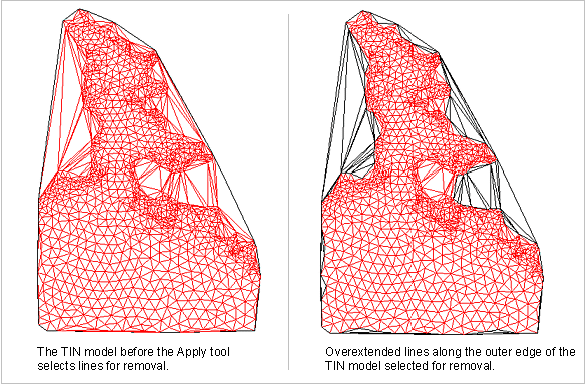
7. Click Apply to apply the changes to the TIN.
8. [Optional] Run the process again to remove additional long edges.
9. Click Close to exit the dialog box.
The dialog box is closed and the TIN is updated with the selected changes. The image below shows the TIN with two iterations of the process applied.