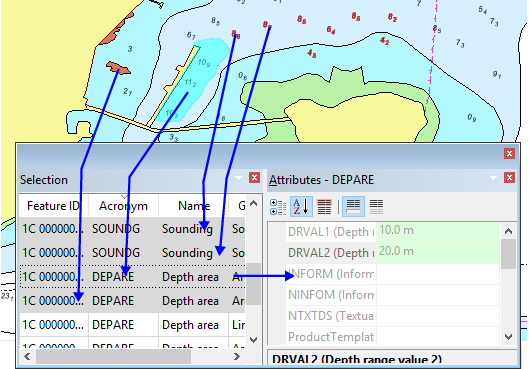
All feature processing in HPD is based on selections. One or more features must be selected for certain processing to be performed. This includes creating collection objects, merging areas, and joining lines.
A selection refers to all selected features.
A subselection is a subset of a selection. Operations can be performed on subselections without affecting the rest of the selection.
A superselection is a single special feature in a selection. Some commands operate only on the superselected feature.
By default, the superselected feature is displayed in cyan and the rest of the selection is red. These colours can be changed in the Options dialog box. You can also set a transparency levels for selections and superselections and a buffer size for the superselection.
Information about the selection is displayed in the Selection window. The superselection and subselection, if any, are highlighted in grey.
You can superselect a feature by clicking on the appropriate row in the Selection window. Details about the superselected feature are displayed in the Attributes window.
The Selection window displays information such as feature ID, acronym, and name.
The Attributes window displays attributes and values for the superselected feature. Mandatory attributes are green when their values are defined and red when they are not defined.
See CARIS HPD Interface Guide: Windows for details on the various windows in HPD.
The following functions can help you manage, refine, and work with selections.
To... | Do this... |
|---|---|
Zoom in and centre a feature in the Display window. | Double-click a row in the Selection window. |
Remove one or more features from the selection. | In the Display window: 1. Hold <Ctrl> and click one or more features. If the feature is selected, it is removed from the selection. If it is not selected, it is added to the selection. 2. Select the Remove Subselection command. The superselected feature is removed from the selection. In the Selection window: 1. Highlight one or more rows 2. Select the Remove Subselection command. The highlighted features are removed from the selection. |
Remove all features except superselected features from a selection. | In the Display window: 1. Select the Remove Others from Selection command. Only the superselected feature remains in the selection. In the Selection window: 1. Highlight one or more rows using <Ctrl+click> or <Shift+click>. 2. Select the Remove Others from Selection command. Only the highlighted features remain in the selection. |
Clear an entire selection. | 1. Select the Clear Selection command. All features are removed from the selection. This means that no features are displayed in the Selection window or highlighted in the Display window. |
Switch between features at the same geographic location | 1. Select one of the features. 2. Press <Space> until the desired feature is superselected. |
Select all features on the active layer. | 1. Choose the Select All command. All features on the layer are selected. |
Select all features visible in the Display window. | 1. Zoom in on an area in the Display window. 2. Choose the Select All in Display command. All features on the layer that are visible in whole or in part in the Display window are selected. |
Save attribute information for a selected feature to a text file. | In the Attributes window: 1. Right-click and select Copy or Copy All from the pop-up menu. 2. Paste the clipboard content into a text file. |
Make special selections. | Choose from the commands in the Select menu, such as • by filter • collection objects The items in this menu may vary depending on the application you are using. Refer to the applicable reference guide for further information. |
Related commands
• • • • • • • • • • • • • • | • • • • • • • • • • • • |