
Layers from an existing chart can be linked to an open chart so that the existing chart’s layers overlay the open chart. This is done through the Chart Link (chtlnk) attribute. The linked layers are read-only.
Chart linking can be a means to add information from existing charts to new charts instead of reproducing that information.
The following conditions are required for linking:
• Charts must belong to same schema
• Charts panels must have the same characteristics and position on the sheet.
• Vector features that have not been burned into a layer are not visible in that layer when it is overlaid on a chart.
An example of how to use a chart link is shown below.
Chart A has a single raster layer and is open in PCE.
Chart B has multiple raster layers.
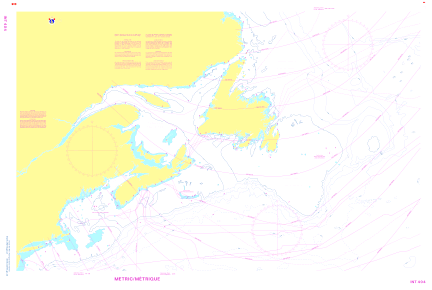
When the Chart Link attribute in Chart A is set to Chart B – all layers in Chart B are opened in Chart A

To set up a chart link:
1. Select the Chart layer in the Layers window.
2. In the Attributes window, click Browse in the Chart Link (chtlnk) attribute field.

The Link Chart dialog box is displayed.
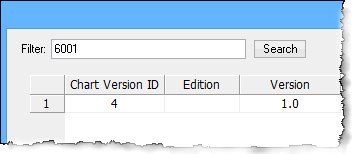
The current chart number is listed in the Filter field.
3. Type the chart number or other attribute of the chart to which you want to link.
4. Click Search.
The chart is listed in the dialog box.
5. Select the chart and click OK.
The layers from the selected chart are overlaid on the open chart.
The linked layers are displayed in the Layers window with special link icons.

In the above image, all layers except BLPN have a link icon. These layers were linked from another chart to the open chart. The BLPN layer is part of the open chart.
If the chart has not been saved, a chart link can be removed by removing the linked chart from the Chart Link field in the Attributes window.