 CARIS HPD Paper Chart Editor
 CARIS HPD Paper Chart Editor
CARIS HPD Product Editor
CARIS HPD Source Editor
CARIS S-57 Composer
CARIS Paper Chart Composer
Pop-up | Line Digitizer > Geodetic Circle [centre + radius] |
Pop-up | Line Digitizer > Geodetic Circle [2 point diameter] |
Pop-up | Line Digitizer > Geodetic Circle [2 points + radius] |
Pop-up | Area Digitizer > Geodetic Circle [centre + radius] |
Pop-up | Area Digitizer > Geodetic Circle [2 point diameter] |
Pop-up | Area Digitizer > Geodetic Circle [centre + radius] |
The Digitize Geodetic Circle commands can be used when you create a line or area.
Related commands:
• | • |
Procedure: Centre and Radius
Digitize a geodetic circle defined by a centre point and a point defining the radius.
1. Choose the Geodetic Circle [centre and radius] command.
2. Click a centre point (1).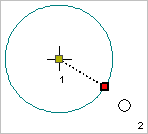
3. Press and hold the left mouse button.
4. Drag the pointer to expand the circle to an appropriate size.
5. Release the mouse button (2).
The geodetic circle is created.
Procedure: Two Point Diameter
Digitize a geodetic circle defined by the length of its diameter.
1. Select the Geodetic Circle [2 point diameter] command.
2. Click the first point on the diameter.
3. Press and hold the left mouse button.
4. Drag the pointer to expand the circle to an appropriate size.
5. Release the mouse button (2).
The geodetic circle is created.
Procedure: Two Points and a Radius
Digitize a geodetic circle specified by two points on the circumference and a third point defining the length of the radius.
1. Select the Geodetic Circle [2 points + radius] command.
2. Click the first point.
3. Click the second point.
The two points are connected by a line. Now add the third point, which defines the centre of the circle and therefore the length of the radius.
4. Press and hold the left mouse button.
5. Drag the pointer to expand the circle to the appropriate size.
6. Release the mouse button.
The geodetic circle is created.