 CARIS HPD Paper Chart Editor
 CARIS HPD Paper Chart Editor
This command is only available if the Raster Chart Module is enabled. |
Menu | Raster > Brush |
Tool |
|
Draw pixels in the same colour as the selected raster layer.
Related commands:
• • | • |
Procedure
1. Select a raster layer.
2. Select the Brush command.
The pointer changes to a brush and the Raster Edit Options toolbar is now active.
The Raster Edit Options toolbar contains options for brush size and shape. Toolbar buttons are described below.
Button | Description |
|---|---|
| Square brush |
| Circle brush |
| Downward-sloping chisel brush |
| Upward-sloping chisel brush |
| Brush size control. The value can be changed by clicking the arrow buttons or by typing a value. |
The brush can be resized by pressing <Ctrl> + (larger) or <Ctrl> - (smaller).
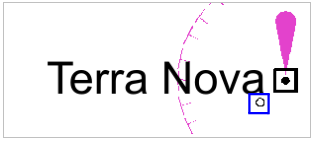
3. Position the pointer and drag the pointer over the area to be brushed.
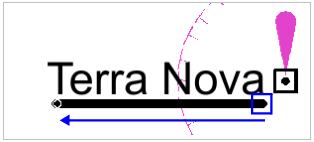
The brush can be limited to either horizontal or vertical movement by pressing and holding the <Shift> key while brushing. |
4. To view changes, select the Refresh command.


