Process Designer : CARIS Batch Utility : BASE Editor Processes : Export Coverage to ASCII
 

Export Coverage to ASCII

Description

The ExportCoverageToASCII process exports band values from a coverage to an ASCII file. The format is essentially CSV but the user can specify the delimiter to be something other than a comma.

Inputs

A point cloud or raster dataset.

Outputs

An ASCII text file.

Command Line Syntax

carisbatch --run ExportCoverageToASCII [options] <input> <output>

User Interface Command

Export Coverage to ASCII

Options

The following table describes the parameters available for this process.

Example

Parameter


Long

Short

Description

Can Repeat

Notes


--include

n

The position or band to include in the output. It requires the following arguments:

<Type> - The type of data to export. One of {POSITION, BAND}.

<Name> - The name of the specific data to export.

If Type is BAND, Name can be any band name.

If Type is POSITION, Name can be X, Y, Lat or Lon.

<DecimalPrecision> - A number specifying the decimal precision for floating point numeric values in the output.

<Unit> - The unit of the data in the output.

If Type is BAND, Unit is one of {cable, ch, cm, fm, ft, in, inm, km, m, mi, mm, nm, usfm, usft, usmi, usnm, usyd, yd}.

If Type is POSITION, Unit can also be one of:

DD - Geographic decimal degrees, formatted with +/- and spaces (" ").

deg - Geographic decimal degrees, formatted with +/- and spaces (" "). Equivalent to DD.

D-M - Geographic degrees minutes, formatted with N,S,E,W and dashes (-).

D-M-S - Geographic degrees minutes seconds, formatted with N,S,E,W and dashes (-).

DMS - Geographic degrees minutes seconds, formatted with +/- and spaces (" ").

If exporting geographic data (latitudes/longitudes), the selected unit will be included in the header of the output file, if a header is used, in the general form of DD, DM or DMS.

The Include option is used in place of IncludeBand, CoordinateFormat, CoordinatePrecision, ElevationUnit, CoordinateUnit, and OtherUnit. If the Include option is used with these other options, an error message is displayed.

Using the Include option requires explicitly specifying which position components (X, Y, Lat, or Lon) to include in the export. Not using the Include option defaults to the previous behaviour of outputting the position first, and then outputting the bands that have been specified with IncludeBand.

Note: POSITION names are entered using a short form. If the ASCII file includes a header, these names are displayed differently in their full length form. For example, X and Y export as Easting and Northing.

The Include option can specified multiple times with the same type and name, using the same or different precision and/or unit.

TRUE

--include-rejected

j

If set, rejected values in the input are included in the output.

FALSE

--include-header

a

If set, the header is included in the output.

FALSE

--delimiter

d

The delimiter character used to delineate columns in output.

Single characters are specified directly. For a single space, use " " or the keyword "space". For a tab, use \t or the keyword "tab".

The default value is a space.

FALSE

--output-crs

c

A string specifying the horizontal coordinate reference system key of the output.

For time-dependent coordinate reference systems, the epoch can be specified, typically using the year, as <crs_id>@1997. A fractional year can also be specified, such as <crs_id>@1997.3, if needed. If no epoch is specified, the reference epoch of the coordinate reference system is used.

If specified, the data is transformed.

FALSE

--coordinate-format

t

A string specifying the format of the coordinates in the output. One of:

GROUND: Ground

LLDG_DMS: Geographic DMS

LLDG_DMS_NO_FORMAT: Geographic DMS (no formatting)

LLDG_DM: Geographic DM

LLDG_DD: Geographic DD

FALSE

This must be specified explicitly.

--coordinate-precision

e

A number specifying the decimal precision of the coordinates in the output.

The default value is 3.

FALSE

--include-band

b

The name and precision of a band to include in the output.

<Name> - A string specifying the name of the band to include in the output.

<DecimalPrecision> - A number specifying the decimal precision for floating point numeric values in the output.

Include values in the output from the band in the input, using the specified precision. The DecimalPrecision is only used for numeric band types, but must be specified for all band types.

The ALL keyword is used to include all other bands in the output in alphabetical order. If the ALL keyword is used in conjunction with explicit band names, the latter overrides the options specified with the ALL keyword.

TRUE

This must be specified explicitly.

--z-axis-convention

z

A string specifying the output Z-axis convention. One of:

UP: Z axis positive up

DOWN: Z axis positive down

The default value is DOWN.

FALSE

--band-filter

f

A string specifying a filter to apply to input band values.

Supported operators: >, <, =, !=. For example, "Depth > 1".

For more information and examples using filters, see Filter Coverage, or Filter Expressions.

FALSE

Values assumed to be using positive UP convention.

--sample

s

The sample size with its sampling method.

<SampleSize> - A number specifying the output sample size.

<SampleMethod> - A string specifying the output sampling method. One of:

MIN: Minimum node value which is equivalent to shoalest when Z down convention applied.

MAX: Maximum node value which is equivalent to deepest when Z down convention applied.

The sample size unit must be specified. If the input is a raster, the sample size must be equivalent to or larger than the resolution of the input.

Supported units: cable, ch, cm, fm, ft, in, inm, km, m, mi, mm, nm, usfm, usft, usmi, usnm, usyd, yd.

FALSE

Valid units are Length type units in unitstable.xml.

--elevation-unit

E

A string specifying the unit for output elevation values.

The value is converted to the specified unit.

Supported units: cable, ch, cm, fm, ft, in, inm, km, m, mi, mm, nm, usfm, usft, usmi, usnm, usyd, yd.

The default value is metres.

FALSE

Valid units are Length type units in unitstable.xml.

--coordinate-unit

o

A string specifying the unit for output coordinates.

The value is converted to the specified unit. The unit is only applicable when CoordinateFormat is set to GROUND.

The default value is the unit of the input CRS.

FALSE

--other-unit

x

A string specifying the unit for any other scalar band values.

The value is converted to the specified unit.

Supported units: cable, ch, cm, fm, ft, in, inm, km, m, mi, mm, nm, usfm, usft, usmi, usnm, usyd, yd.

The default value is metres.

FALSE

Valid units are Length type units in unitstable.xml.

To use this command, refer to the following examples.

Example

Objective

You want to export raster data shoaler than 20m to an ASCII file.

Description

Command Line Syntax

The first line of the file will contain a header.

--include-header

Depth band values will be exported with 5 decimal places and Shoal band values will be exported with 2 decimal values.

--include-band Depth 5 --include-band Shoal 2

A filter will be applied to the output so that only points with a Shoal band value with a depth of less than 20 metres will be saved.

--band-filter "Shoal<20"

The coordinate format will be Geographic DMS.

--coordinate-format LLDG_DMS

The source surface is Surface5.csar located in the D:\BatchSample directory.

D:\BatchSample\Surface5.csar

The output ASCII file will be created in the D:\BatchSample directory and named Shoal20M.

D:\BatchSample\Shoal20M.txt

Command Line

carisbatch --run ExportCoverageToASCII --include-header --include-band Depth 5 ‑‑include-band Shoal 2 ‑‑band-filter "Shoal<20" --coordinate-format LLDG_DMS D:\BatchSample\Surface5.csar D:\BatchSample\Shoal20M.txt

Outcome

A new ASCII file is created in the designated output folder, containing only data shoaler than 20m.

Extra Notes

If a colour attribute band is selected for export, the colour values will always export as four separate columns and in the order red, green, blue, alpha.

Example

Objective

You want to export a raster surface to an ASCII file with both X/Y and Lat/Lon coordinates in the output.

Description

Command Line Syntax

Coordinate information will be exported in the format of:

X/Y with a precision of 2 decimal places and the unit of metres

Lat/Lon with a precision of 3 decimal places and the unit of degrees minutes seconds, separated by dashes.

The elevation values are to be exported from the Depth band with a precision of 2 decimal places and the unit of metres.

--include POSITION X 2 m ‑‑include POSITION Y 2 m ‑‑include POSITION Lat 3 D-M-S ‑‑include POSITION Lon 3 D-M-S ‑‑include BAND Depth 2 m

The first line of the file will contain a header.

--include-header

The source surface is Raster_Input.csar located in the D:\BatchSample directory.

D:\BatchSample\Raster_Input.csar

The output ASCII file will be created in the D:\BatchSample directory and named ASCII_Output.txt.

D:\BatchSample\ASCII_Output.txt

Command Line

carisbatch --run ExportCoverageToASCII --include POSITION X 2 m --include POSITION Y 2 m --include POSITION Lat 3 D-M-S --include POSITION Lon 3 D-M-S --include BAND Depth 2 m --include-header D:\BatchSample\Raster_Input.csar D:\BatchSample\ASCII_Output.txt

Outcome

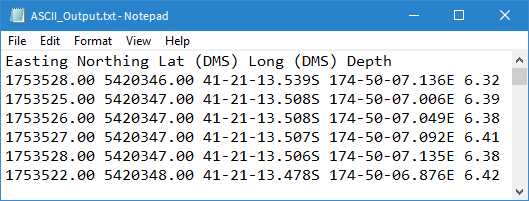
A new ASCII file is created in the designated output folder and should look similar to the example below:

Extra Notes