Menu | Tools > Modules |
Enable or disable Teledyne CARIS licensed software modules that are available in the application. Modules provide sets of tools meant for specific work flows and data types. Separate licenses are required for some modules.
This tool can be run on a computer with a network key or with a local key.
When the application is launched, the default layout and the tools available in the menus will differ based on the enabled and licensed modules. No modules are enabled by default.
• If a module is enabled and the appropriate license is available, any menu items, toolbar buttons and default windows associated with the module will be included in the interface and enabled (if the necessary data is open/selected).
• If a module is disabled, regardless of licensing, the menu items, toolbar buttons and default windows will not be included in the interface.
• If a module is enabled, but licensing is not available or is lost, the items associated with the module will be present in the interface, but they will be disabled.
The application must be restarted after changing the modules to add or remove the components associated with the modules. This will cause the default layout to be changed and a message to be displayed in the Output window stating that the layout has been changed.
Procedure
1. Select the Modules command.
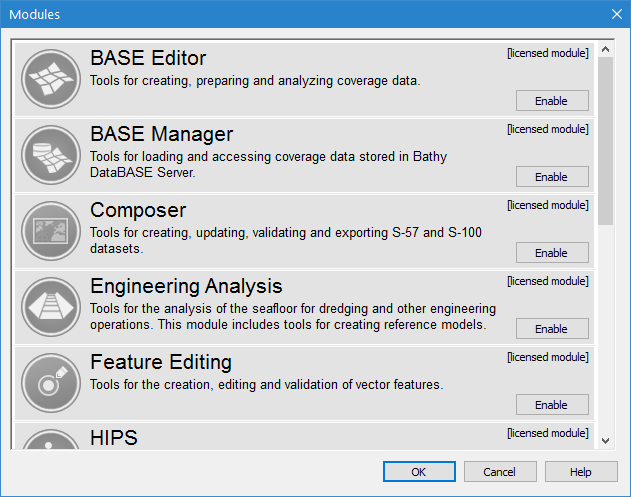
The Modules dialog box is displayed.
This dialog box will be empty if running CARIS Onboard Viewer, as there are no modules installed with this application. |
2. Click Enable to turn on licensed modules or Disable to turn them off.
If you enable a module that is dependent on one or more other modules, you will see a message like this:
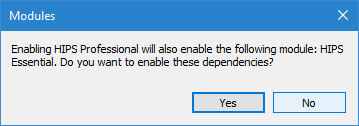
3. Click Yes to enable all dependent modules or No to disable all.
You are returned to the Modules dialog box.
4. If necessary, enable other modules.
5. Click OK.
6. Exit from the application.
When you restart the application, the modules you changed will be enabled or disabled. The commands will be changed to reflect the enabled modules.