Menu | Tools > Run Process Model |
Tool |
|
Menu | Tools > Run Process Model |
Tool |
|
This command enables you to run a process model file, which is created in Process Designer. Values for pre-defined process parameters are entered, then the process is run. Sample process model files are provided with some CARIS modules. These files can generally be found at:
C:\ProgramData\CARIS\<application>\<version>\SampleData
Interface
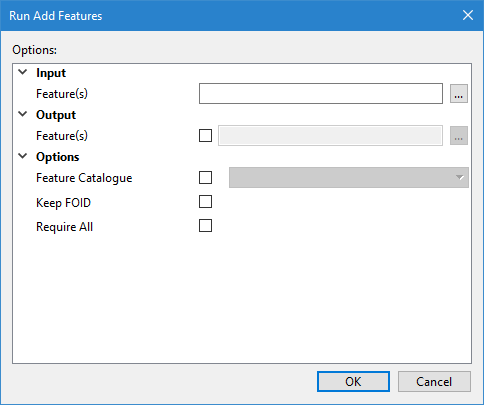
The Run Process Model command uses the following dialog box.
Option | Description |
|---|---|
Options | The Options table is used to specify settings and values needed to run the processes in the process model. The fields in this table will differ based on the selected process model. If all options were defined in the process model, there will be nothing to specify in this dialog box. For list-type fields: 1. Click the Add button to add a text entry for each item needed in the list field. 2. Type a value in each new list item. 3. Select a list item and use the Up and Down Arrow buttons to order the list as needed. |
OK | Click to run the process model using the options entered. |
Procedure
1. Select the Run Process Model command.
The Select a Process Model to Run dialog box is displayed.
2. Browse to and select a process model file (*.processmodel).
3. Click Open.
The Run <process model> dialog box will appear with the process model name in the title bar. This dialog box will display any fields that require specific data or settings in order to run the model file, for example, selecting raw data or a surface to be processed. These requirements will have been set in Process Designer, in the properties of processes included in the model file.
If all properties in the process model were defined in Process Designer, the dialog box may not show any properties requiring interaction. |
4. Enter values in all necessary fields.
5. Click OK to run the process model.
A processing status box will be displayed with a progress bar.
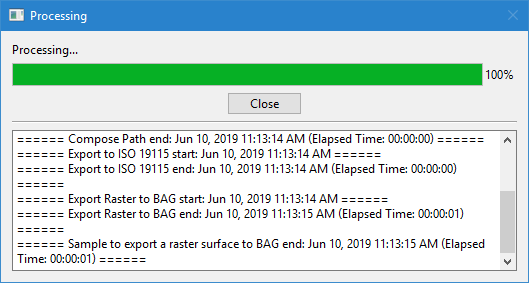
Information for each process is also reported in the Output window.
6. Click Close when the process is complete.

