Menu | Edit > Edges > Smooth & Filter |
Tool |
|
Menu | Edit > Edges > Smooth & Filter |
Tool |
|
The Smooth and Filter Edges command adds or removes vertices from selected line or area features to smooth rough features and remove unnecessary vertices.
• Smoothing fits a cubic spline through all vertices on the selected features using the bSpline Order algorithm.
• Filtering removes vertices using the Douglas-Peucker algorithm and the specified tolerance. The tolerance determines the amount of processing done - the larger the tolerance, the fewer vertices that remain. See Douglas-Peucker Algorithm for more information on how the algorithm works.
The tolerance is set using the Edge Filter option and the units for the tolerance is set using Distance Units in the Options dialog box.
When the command is run, the vertices in the selected features are analyzed to determine whether the edges need to be smoothed, filtered or both. If either operation is performed, the change(s) are reported in the Output window.
Related commands:
Interface
The Smooth and Filter Edges command uses the following dialog box.
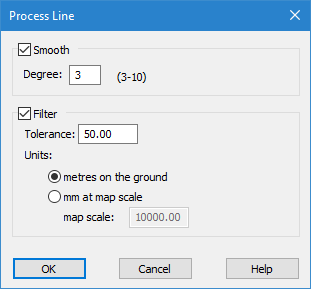
Option | Description |
|---|---|
Smooth | Enable this option to apply smoothing to the selected edges. |
Degree | The degree of smoothing you wish to apply. |
Filter | Enable this option to apply filtering to the selected edges. |
Tolerance | The number of units by which to perform filtering. Enter a value in the field. |
Units | The distance type to use for filtering. 1. Select either metres on the ground or mm at map scale. 2. If you choose mm at map scale, a value must be entered in the map scale field. |
Procedure
1. Select one or more line or area features.
2. Select the Smooth and Filter Edges command.
The Process Line dialog box is displayed.
3. Enable the function you want to apply.
4. Set any necessary options.
5. Click OK.
The edges of the selected features are altered accordingly.
