Menu | Edit > Features > Cut and Remove |
Use one feature to cut one or more other features and remove the cut segments. The cutting feature can be a line, an area, or a closed shape. You can cut features on the same layer as the cutting feature or on a different layer.
Some features from the imported dataset may overlap features at the boundaries of the existing data. The Cut and Remove Features command affects only those segments of an area or line feature that are within the project or workspace boundary.
A line feature can also be used for cutting:
• When the cutting line overlaps another line, the underlying line is deleted.
• When the cutting line partially overlaps another line, only the underlying segment of the line is deleted. New lines with the same attributes and different feature object IDs are created.
• When the cutting line crosses another line, the underlying line segment is not cut.
The removed features are deleted.
Related commands: Cut Features
Procedure: Cut features in the active layer
To cut features that are all on the same layer.
1. Make the layer active.
2. Select the features to be cut.
3. Superselect the feature to be used as a cutting tool.
4. Select the Cut and Remove Features command.
The selected features are cut by the superselected feature.
Procedure: Cut and remove features on another layer
If only one feature is selected, it is assumed that the feature to be cut is on another layer.
1. Make the layer that contains the cutting feature active.
2. Select the cutting feature.
3. Select the Cut and Remove Features command.
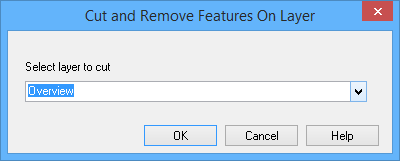
The Cut and Remove Features on Layer dialog box is displayed.
Option | Description |
|---|---|
Select Layer to Cut | The open layer containing the features that can be cut. |
All open layers are listed.
4. Select the appropriate layer from the list.
5. Click OK.
Features on the selected layer are cut by the cutting feature.
Example
An imported dredged area overlaps two anchorage areas.
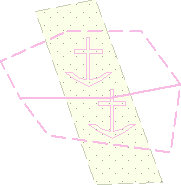
When the dredged area is used as a cutting feature, all features within it are deleted and four anchorage areas are created.
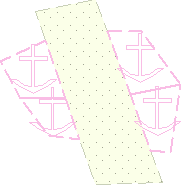
The new anchorage areas have the same attribute values as the originals but are assigned new feature object IDs.