Menu | Start menu > BASE Editor <version> Command Prompt |
Tool |
|
The bathydbchangepw tool allows a user to change the password for his/her user account. This command can be run by any user, avoiding the need to have an administrator account. Only the password of the current user can be changed; users cannot change the password of another user account.
The following is the command line format for the tool:
bathydbchangepw [/h] /l <str> [/p <str>]
Parameters in square brackets (“[...]”) are optional. |
The following table describes the parameters available for this tool.
Parameter | Description |
|---|---|
/h | Display the help message (command format and descriptions of the available parameters). |
/l | The credentials used to login to the Node Manager. They must be entered in the format of: • username/password, or • username/password@hostname, where hostname is the name or IP address of the computer on which the Node Manager service is installed and running. When hostname is not specified, it is assumed to be the local machine. |
/p | The new password for the user account. If this parameter is not specified, the user will be prompted to enter the password. |
Omitting the /p parameter is a more secure method of using this command. When specifying the new password in the command string, the characters are entered as standard characters which are recognizable by other users who may be within viewing distance, or who may view the history in the command console if it is left open. When the console is forced to prompt for the password, the characters are entered as asterisks that cannot be recognized by another user.
To use this command:
1. Launch the BASE Editor <version> Command Prompt window.
Menu | Start menu > BASE Editor <version> Command Prompt |
Tool |
|
2. Type “bathydbchangepw” followed by the appropriate parameters.
3. To finish, press <Enter>.
If you chose to define the /p =parameter, a message is displayed stating that the password has been changed. If you did not define the /p parameter, the console will display a "New Password:" request.
4. Enter the New Password for the user account and press <Enter>.
You will then be prompted to confirm the new password.
5. Enter the new password a second time and press <Enter>.
The message is displayed stating that the password was changed.
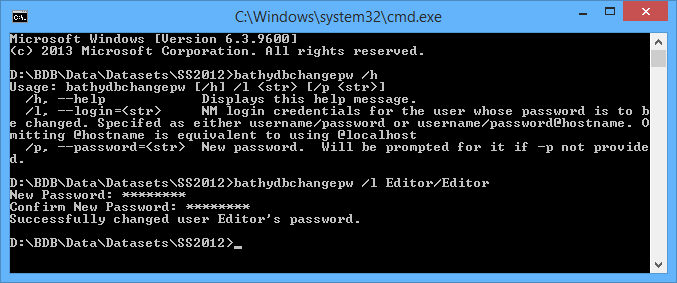
Example:
You need to change your user account password, where:
• the username is User1,
• the current password is Password1,
• the Node Manager service is installed on the Server1WS computer,
• the new password will be NewPass1, and
• the password will be included in the command string.
Type the following:
bathydbchangepw /l=User1/Password1@Server1WS /p=NewPass1
