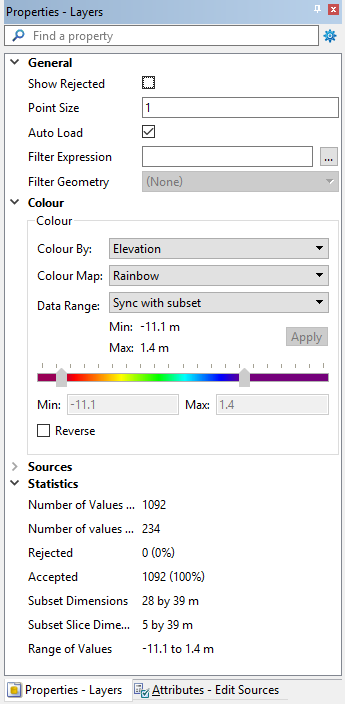
When the Subset Editor or Edit Sources layers are selected, the Properties window contains settings that can be used to adjust the display in the subset views. The description panel at the bottom of the Properties window provides a brief description of each available property.
Like the view in the 2D View, the Colour properties can be used to colour the data in the Subset View windows according to any of the attributes present in the data, including colouring by source. A colour map file is applied to the view using the values of the selected attribute and the range of those values. The Data Range property can be used to define the data range to which the colour map will be applied. The options include:
• Data, which uses the full range of the data in the data source. With this option, the colour slider or Min and Max fields can be used to manually define the data range for the colour. The Apply button for the Data Range: Min and Max fields can be used to apply the displayed data range values to the range for the colour map.
• Subset, which uses the range of the data in the subset only, and also provides the ability to manually define the data range to which the colour map will be applied.
• Sync with subset, which uses the range of the data in the subset only, but disables the colour slider and Min and Max fields for the colour map range. The range for the colour map is updated dynamically as the status flags of the data in the subset are changed.
The Filter Expression and Filter Geometry properties can be applied separately or together to filter the data displayed in the Subset View windows.
• The Filter Expression property launches the Expression Builder dialog box, which is used to define a filter expression. Only data within the subset bounding box that meets criteria of the specified expression will be displayed in the Subset View windows. See Filter Expressions for information on creating filter expressions.
• The Filter Geometry property is used when defining the subset area using the geometry of an existing area feature via the Click Within mode. With this property, you can specify whether the filter is inclusive or exclusive. Inclusive will display points that are within the geometry only, exclusive will display points that are outside the area but within the subset bounding box. There is also a None option that turns off the geometry filter, displaying all points within the subset bounding box.
Any properties defined will be remembered the next time the Subset Editor is launched.