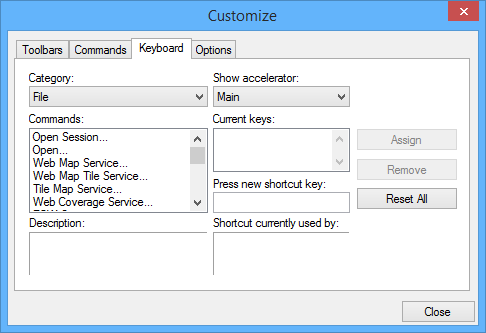
The Keyboard tab of the Customize dialog box lets you create keyboard shortcuts for commands. Each command can have more than one shortcut assigned to it.
Option | Description |
|---|---|
Category | A list of command categories. Select from the list. |
Commands | A list of the commands in the selected category. Select from the list. |
Description | A description of the selected command. Read-only. |
Show accelerator | The menu you want the shortcut displayed in. Select from: • Main: The regular menu. • Startup: The menu displayed when the application is started, before any files are opened. |
Current keys | The current shortcut for the selected command, if any. |
Press new shortcut key | The new shortcut. Non-character keys are listed by their names. For example, if you press <Ctrl> and type Type the new shortcut. |
Shortcut currently used by | If the new shortcut is already in use, the command using it is displayed. |
Assign | Apply the new shortcut. If the shortcut was previously assigned to another command, it will be removed from that command when it is assigned to the current command. |
Remove | Remove the current shortcut from the selected command. Click in the Current Keys box then click Remove. |
Reset All | Restore all keyboard shortcuts to the defaults. |
Procedure
1. Select a command category from the Category list.
2. Select a command from the Commands list.
3. Select the menu system from the Show accelerator list.
Information about the selected command is displayed in the Description field. Any current keyboard shortcut is displayed in the Current keys field.
To assign a new shortcut:
4. Enter a keystroke or combination of keystrokes in the Press new shortcut key box.
The keystrokes are displayed.
If the key combination is already assigned to a command, that command is displayed in the Shortcut currently used by field.
5. Click Assign.
The shortcut is assigned to the command. If it was previously assigned to another command, it will be removed.
To remove a shortcut:
1. Select a shortcut in the Current keys field.
2. Click Remove.
The selected shortcut is removed.
To reset all shortcuts:
1. Click Reset All.
All commands are reset to their default shortcut values.