Menu | Tools > Coverages > Modify >Finalize... |
A finalized surface is a finished version of the surface that is ready for export or for further processing (for example, to add contours). Most importantly, finalizing a surface ensures that designated soundings are included in the final surface, to be carried through to bathymetric products.
These three operations can be applied when finalizing a surface:
• Designated soundings: If the data set contains designated soundings, the surface is regenerated and the designated soundings’ depth values are applied to the nearest nodes. (See Critical Soundings).
• Minimum uncertainty: Vertical uncertainty can fall to almost zero if a node contains too many soundings. This function applies a user-defined vertical uncertainty to each node to compensate for this situation.
• Restrict z-values: A finalized surface can be modified to represent a range of depths levels. When the finalized surface is generated, only these depths are displayed.
Interface
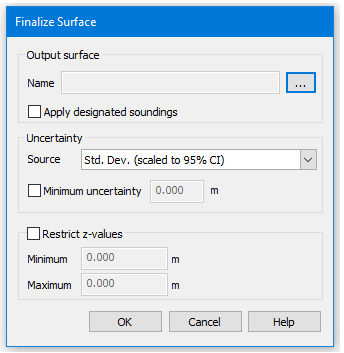
Finalize Surface command uses the following dialog box.
Some surfaces have calculations for approximated values. For these surfaces, options from the Uncertainty section may be available. The Uncertainty / Source drop-down list gives the option to apply standard deviation values from the source surface (scaled to 95% confidence interval) as the source for calculating the uncertainty of the finalized surface. The default is set to None.
Procedure
1. Select a surface layer in the Layers window.
2. Select the Finalize command.
3. Click Browse in the Name field to name and save the finalized surface.
4. Select the Apply Designated Soundings check box to ensure that designated soundings are retained in the resulting surface,
If this option remains un-selected, designated soundings are processed no differently from other soundings.
5. Set an uncertainty option source option from the drop-down list.
6. Select the Minimum Uncertainty check box and type a depth value to represent the minimum vertical uncertainty value.
The Restrict Z-values fields enable you to limit the nodes that will be included in the finalized surface by specifying a range of values to include. Only nodes that fall within this range will be included in the resulting surface.
7. Select the Restrict Z-values check box to create a finalized surface that displays only node depths between the set range.
8. Type minimum and maximum depth values in their respective fields.
9. Click OK.
A finalized surface is generated and visible in the Display window, and listed in the Layers window.