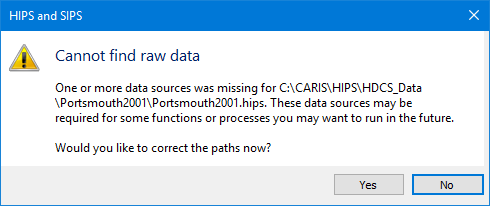
When a HIPS file is opened, the Check HIPS File process is run to determine if there are any missing files or paths to raw data.
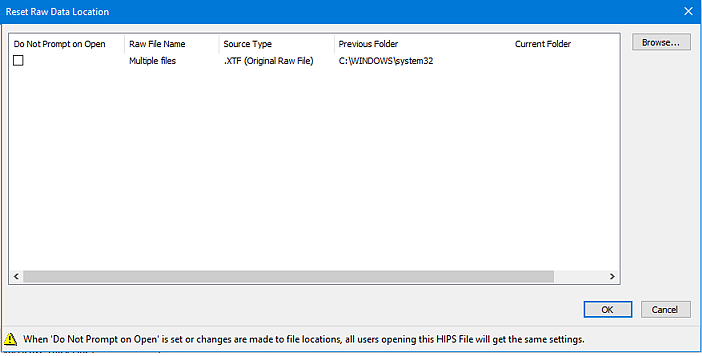
When there is something missing, you will be prompted to find the missing data and the Reset Raw Data Location dialog box is displayed shown to enable you to fix these paths.
If the raw data used for import (sensor and auxiliary) is not found, a message is displayed with the option to update the paths of the raw data.
Selecting the Yes option will launch the Reset Raw Data Location dialog box so that you can determine what is missing and where it was previously located.
The dialog box automatically resolves missing vessels and auxiliary/original raw files, if they are relative to the location of the *.hips file, and fills in the information in the dialog box so it can be confirmed.
Any missing Raw Data sources will be ignored where the track line folder is also missing.
The path to the raw data can be set when at least one of the raw files is found. Items with 'Warning' will resolve only those sources actually found.
The Check HIPS File function can also be run from the Project Window context menu by right-clicking on the HIPS file.
Since some users are only viewing data and do not have the original raw data, the “Do Not Check On Open” option has been added to the Reset Raw Data Location dialog box. This enables you to set which checks can be ignored when opening the data the next time.
Interface
The paths to missing raw data files can be corrected using the Reset Raw Data Location dialog box.
Procedure
1. Right-click on the project name in the Project window.
2. Select Check HIPS File from the context menu.
This opens the Reset Raw Data Location dialog box which displays names of the raw files, the type of file and the folder it is in.
3. Click Browse to navigate to the location of the data.
4. Click OK.