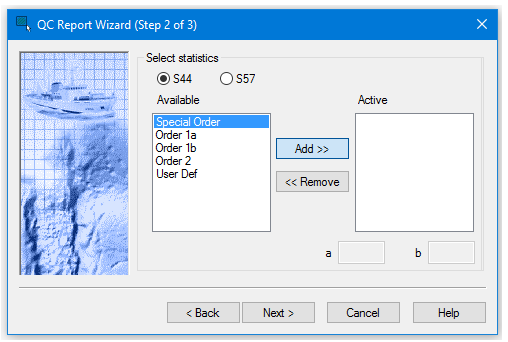
The QC Report - Wizard Step 2 dialog box is used to select the IHO standard for determining what percentage of soundings fall within a selected error limit for depth accuracy.
Use either the S-44 Ed. 4 survey orders or S-57 CATZOC zones of confidence.
S44 is selected by default. If you select S57, the dialog box is refreshed to show the s-57categories relevant to S-57CATZOC zones of confidence.
Procedure
1. Select S44 or S57.
2. To display a category in the QC report, select it in the Available list and click Add to move to the Active list.
If you are using the user defined (User Def) category, the a (constant depth error) and b (factor of the depth dependent error) fields become active once it is moved to the Active list.
3. [Optional] Type the values for the user defined category in the a and b fields.
4. To remove a category, select it in the Active list and click Remove to move it back to the Available list.
5. Select a category and click the up or down arrow buttons at the top of the Active list to determine its order in the Active list. This will determine the order that data is displayed in the Report window when the QC Report is generated.
6. Click Next.