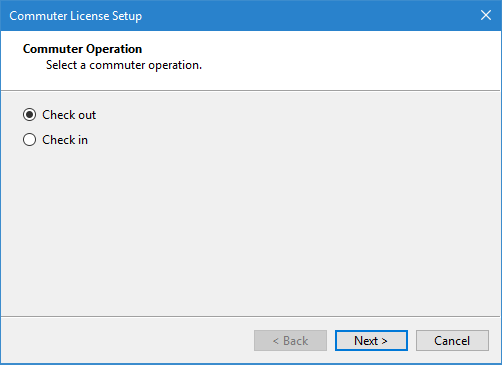
To check out a commuter license, you must be connected to a license server using a network commuter license. This will be the server from which the module licenses are checked out. If you are not using a network license, see Network License for information on activating a network license.
To check out a commuter license:
1. Launch the Teledyne CARIS application.
Menu | Help > License Manager |
2. Select the License Manager command.
The License Manager dialog box is displayed.
3. Click the Manage commuter licenses button.
The Commuter License Setup wizard is launched.
4. Select Check out and click Next.
The Check Out step is displayed. This step is used to select the modules licenses you want to check out and the end date for the commuter license.
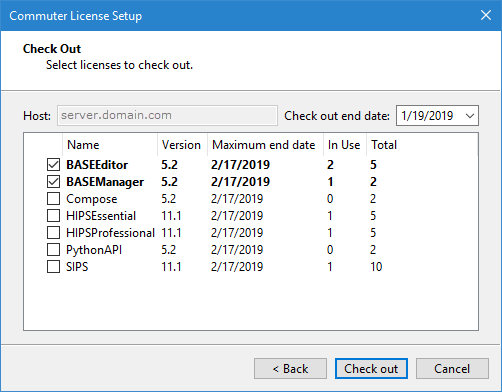
If the network license has not been configured to allow commuter license check outs, the list of available licenses will be empty. |
The following information is provided for the available licenses:
Option | Description |
|---|---|
Host | The license server from which licenses will be checked out. |
Check out end date | The expiry date for the commuter license. The license will be revoked at 11:59pm on this date. |
Name | The module license to be checked out. |
Version | The version of the module included in the license. |
Maximum end date | The maximum number of days allowed for the commuter license. Attempting to select a date that exceeds this value will cause an error to be displayed. If the check out is performed using the invalid date, the end date for the license will automatically be changed to the maximum date displayed here. |
In Use | The number of licenses currently in use for the module. |
Total | The total number of licenses available for the module. |
5. Click the Check out end date field.
A calendar tool will be expanded. The left and right arrow buttons can be used to select a different month.
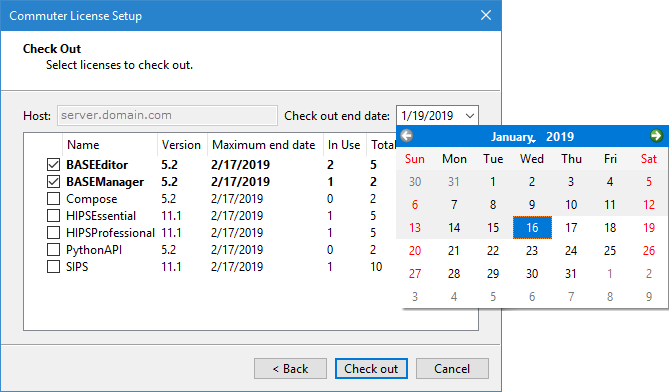
6. Select the date to use as the expiry date and collapse the calendar tool.
7. Click the check box for each license you want to check out.
8. Click Check out.
A confirmation message will be displayed.
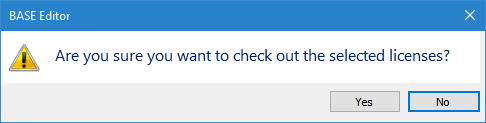
9. Click Yes to complete the check out.
The Commute Complete step is displayed. This step lists the module licenses that were checked out.
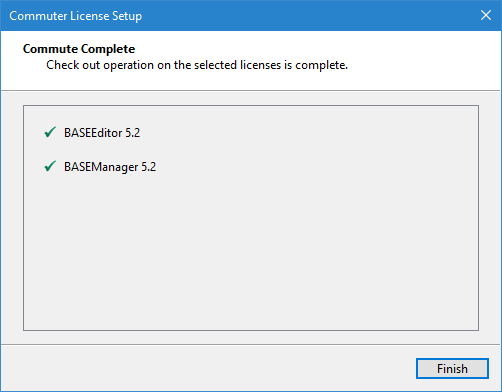
10. Click Finish to close the Commuter License Setup wizard.
The check out is now complete. Because a commuter license functions as a local license, you must be in local mode to use the license that was checked out. A message will be displayed prompting you to switch to local mode.
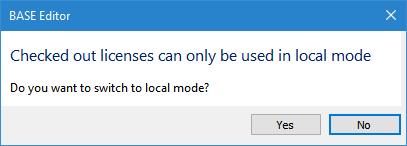
11. Click Yes to switch to the local commuter license, or click No to continue using the network license.