Menu | Tools > Editors > Side Scan > Contacts > Select Contact |
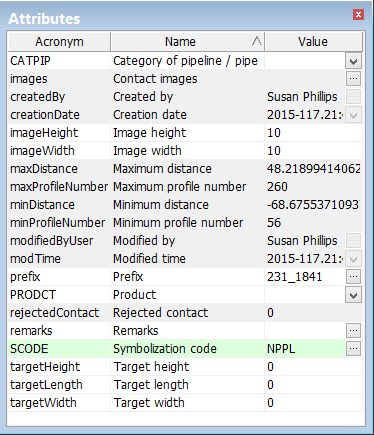
The attributes of a selected contact in Side Scan Editor are displayed in the Attributes window. Fields that uniquely identify the contact are not editable and are highlighted in grey.
The following image shows a sample of attributes for a point contact:
Procedure
1. In Side Scan Editor, enable the Select Contact tool.
2. Select a contact in the Side Scan View.
3. Open the Attributes window.
4. Select a contact in the Attributes window.
5. Type new information in the editable fields, or click Browse to select new values.
Different types of contacts have various attributes, for example:
Attribute | Description |
|---|---|
Creation date | Date the contact was created. |
Image Height and Width | Size of the area around the contact image (set in the Properties (in pixels) |
Contact images | Lists any embedded images, and any external raster images linked to the contact. External images are located in the folder set for the External Files variable in the Environment tab of the Tools > Options dialog box. |
Maximum/ minimum distance | For a line contact, shows the distance of the first and last point of the line in from nadir. If a point contact both values will be the same. |
Minimum profile number / Maximum profile number | For a line contact, profile numbers show the starting and ending position of the line in the waterfall view. If a point contact both values will be the same. |
Modified time | Date the contact was modified. |
Modified by | The name of the Current User logged into to the computer (as seen in Tools > Options). |
Prefix | The prefix is usually the line number. It is combined with the contact number to generate a 12-character key for database applications. |
Rejected contact | Status of contact as defined in Catalogue Editor. 0 = not rejected, 1 = rejected. |
Remarks | Editable text entered by user |
Target Height and width | Size of the contact in the waterfall view. Use the Measure Distance and Measure Shadow tools to determine these dimensions. |
Symbolization code | A CARIS Feature code used for symbology of contacts when they are exported to CARIS Map. |
Created by | The name of the Current User logged into to the computer (as seen in Tools > Options). |
See also Select Contact