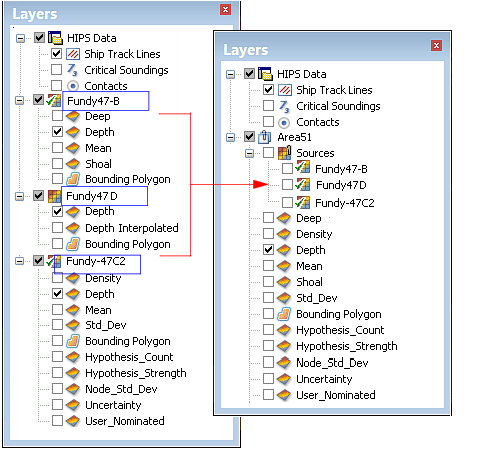
Multiple surfaces can be grouped together, so that the same display properties can be applied consistently to all the grouped surfaces.
Grouped surfaces are listed together under a new Sources layer, followed by their combined attribute layers, as in the example below.
When a surface is added to an existing group, the properties of the first of each type of attribute layer included in the group are applied to all other attribute layers of the same type.
For example, if the Depth layer for the grouped surfaces has Filter values set, the Depth layer for a surface added to the group will display data within the filter range, regardless of its settings before it was added to the group.
Create a group
To group multiple surfaces:
1. Right-click in the Layers window.
2. Select the Group command from the pop-up menu.
Pop-up | Group |
A New Group layer is displayed.
3. Double click on the new group to rename it.
Add to group
To add to the group:
1. Drag a layer into the new group.