Menu | File > Open > File |
Tool |
|
Key | <Ctrl+O> |
Additional information may be required to correctly display the data in a non-georeferenced file, such as BMP file.
To open a BMP file:
1. Select the Open command.
Menu | File > Open > File |
Tool |
|
Key | <Ctrl+O> |
The Open dialog box is displayed.
2. Select the file to open.
3. Click Open.
There are three possible outcomes:
• Option 1: If the selected file has a corresponding reference file (.bmp_rxl), the file will open, registered with the coordinate system defined in the accompanying file.
• Option 2: If the selected file has a corresponding World file (.wld), but no reference file, the Select Projection dialog box is displayed. The .wld file contains the geographic extents of the data, but requires a coordinate system.
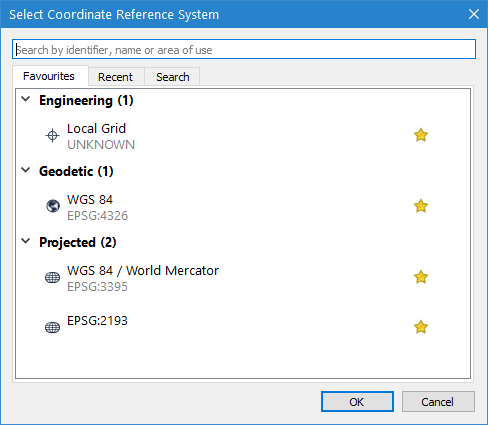
• Option 3: If the selected file does not have any accompanying files, the data is opened without being registered to a coordinate system. A red “prohibited” symbol will display on the layer icon signifying that it is not georeferenced.
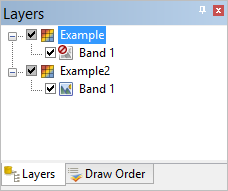
4. Depending on the file selected, use one of the following methods to complete the process:
• For option 1: Nothing further is required.
• For option 2: Select the coordinate system and ellipsoid that corresponds with the data in the selected file and click OK.
• For option 3: Register the image to a corresponding dataset. See Register for information on the Register tool.
The coordinate system registered to the file can be changed if needed using the Coordinate Reference System property. Changing this property will update the _rxl file associated with this file. |
The file is added to the Display and Layers windows and can now be used with any associated datasets.
