Menu | File > Import > HOB Surfaces as Model |
This command allows HOB file data to be imported into a new reference model that can be opened in other CARIS products. This procedure reads the data in a HOB file and maps the features and their attributes to reference model feature types (templates, surfaces, points, etc.). Mapping is performed using either default settings in the application or a catalogue matching file. With the default settings, $AREAS objects are mapped to surfaces, DRGARE objects are mapped to templates, and $LINES objects are mapped to lines and profiles.
If you choose to use a catalogue matching file, there is a sample catalogue matching file located at:
C:\ProgramData\CARIS\<application>\<version>\SampleData\
catalogue_matching_file.xml
If neither of these options suit your needs, you can manually create a new catalogue matching file specifying alternate settings. If an acronym is specified in the matching file that does not exist in the HOB file, that acronym will be skipped during import. See Create a Catalogue Matching File for more information on matching files.
Interface
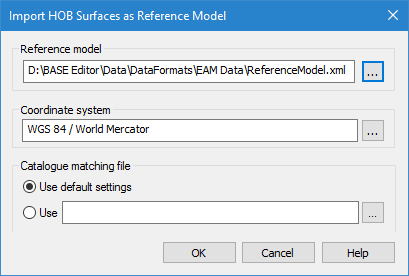
The Import HOB Surfaces as Model command uses the following dialog box.
Option | Description |
Reference model | The name and location for the resulting reference model file. 1. Click the browse button (...). 2. Navigate to a location for the file and enter a file name. 3. Click Save. |
Coordinate system | The coordinate reference system (CRS) for the resulting reference model. A CRS is selected using the Select Coordinate Reference System dialog box. For information on this tool, see Coordinate Reference System Selection. 1. Click the browse button (...) to launch the Select Coordinate Reference System dialog box. 2. Select a CRS and click OK. |
Catalogue matching file | The mapping settings for assigning object and attribute acronyms during export. This can be done with the default settings in the application, or a catalogue matching file. If using a catalogue matching file, the browse button (...) is used to select a file. |
Procedure
1. Open a HOB file containing the data that you want to import.
2. Select the Import HOB Surfaces as Model command.
The Import HOB Surfaces as Reference Model dialog box is displayed.
3. Define a name and location for the new reference model.
4. Select a CRS for the model.
5. Choose a Catalogue matching file option and, if necessary, a file.
6. Click OK.
The dialog box will be closed and a progress bar will display in the Status bar until the import is complete. The data in the HOB file is imported into a new reference model according to the settings defined in the mapping file.