Menu | Create > New Model Feature > Point > At Arc Centres |
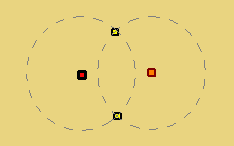
This tool is used to create two possible arc centres at the intersecting positions on the radii of two selected points in your reference model. New arc centres can be used to create new alignments.
Related commands:
•
Interface
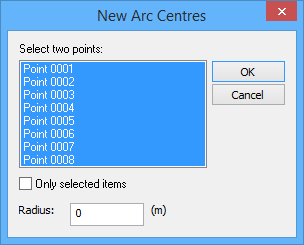
The New Point at Arc Centres command uses the following dialog box.
Option | Description |
Select two points | The reference model points to use as reference points for the new arc centres. 1. Press and hold the <Ctrl> key, then click two points in the list. |
Only selected items | Enable this option to limit the list of available points to only the reference model points that were selected when the command was launched. |
Radius | The radius value for the new arcs. The arcs must intersect, so this value must be at least half of the distance between the points you selected. The Measure Distance and Angle tool can be used to accurately determine the distance. See Measure Distance and Angle for more information. |
Procedure
1. [Optional] Use a selection tool to select points in the reference model.
2. Select the New Point At Arc Centres command.
The New Arc Centres dialog box is displayed.
3. Select two points from the list.
4. Enter a Radius value.
5. Click OK.
The possible arc centres are drawn in the Display window (dashed line circles are not displayed).