Menu | Create > New Model Feature > Template > From Existing Surfaces |
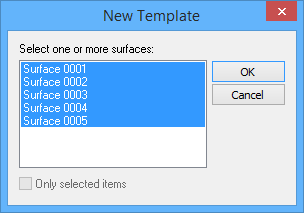
Pop-up | Create New Template (Model window) |
The Template from Existing Surfaces command is used to create a new template using existing surfaces.
To create a template one or more surfaces must be available and the surfaces should not be overlapping. If the templates have overlapping surfaces, they are "incomplete" and cannot be used in calculations until the overlaps are resolved. When a reference model with an incomplete template is loaded in a CARIS application, a warning is displayed in the Output window.For more information about templates, see Templates.
Related commands:
• New Template from a Cross-Section
Procedure
1. Select the (New Feature, Template) From Existing Surfaces command.
The New Template dialog box is displayed. The dialog box displays all existing surfaces for the currently open reference model.
2. Press and hold the <Ctrl> key, then select the surfaces to include in the new template
3. Click OK.
The new template is created and shown in the Display window.