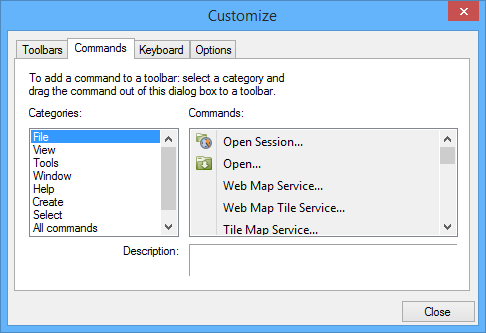
The Commands tab of the Customize dialog box lets you add commands to a toolbar or remove commands from a toolbar.
Option | Description |
Categories | A list of all the menus in the application plus the All commands category. Select a category to display its commands in the Commands list. |
Commands | A list of all commands in the selected category. |
Description | The definition of the currently selected command. The information in this field is read‑only. |
Procedure
To add commands to a toolbar:
1. Select a command category from the Categories list.
The commands in the category are displayed in the Commands list. A description of the command is displayed in the Description field.
2. Drag a command from the Commands list onto a toolbar.
Note that you drag the command out of the dialog box and drop it on the actual toolbar.
To remove commands from a toolbar:
1. Drag the command from the toolbar and drop it at any location.