Menu | Tools > HIPS Data Filters > Surface/Polygon |
This filter uses an input surface and a scaled standard deviation or uncertainty threshold to reject data that fall outside the specified threshold. You can also filter by a direct threshold amount or by accepting or rejecting soundings that fall inside or outside of a selected surface or polygon.
Interface
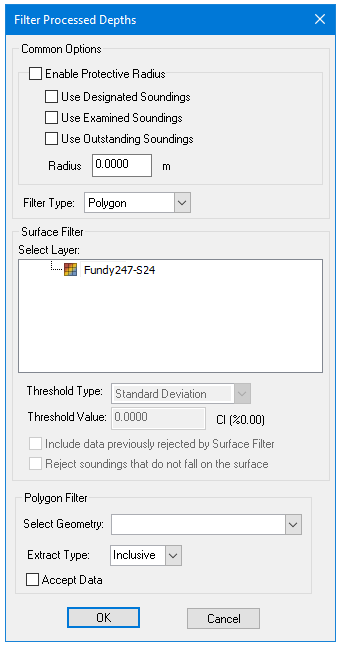
Settings are made in the Filter Processed Depths dialog box.
(This dialog box is also used by the Surface Filter (Subset of a Reference Surface) command.)
Option | Description |
Common Options | |
Enable Protective Radius | 1. Select the check box to turn on a protective radius around critical soundings. Neighbouring soundings inside the protected area will not be filtered. 2. Select the type of critical soundings to be protected: one or all of Designated, Examined or Outstanding. |
Radius | Set the size of the radius |
Filter Type | • Set Surface to filter the area of the selected surface • Set Polygon to filter the area within the bounding polygon. |
Surface Filter | |
Select Layer | Select the surface layer to be filtered. |
Threshold Type | Set the type of surface used as input: Static Value (a specific number) or Standard Deviation. |
Threshold Value | Set the value to reject all soundings that fall outside the specified threshold. |
Include data previously rejected by Surface Filter | Select check box to accept previously rejected data that falls within the selected threshold values. |
Reject soundings that do not fall on the surface | Select Check box to reject soundings not on the selected surface. |
Polygon Filter | |
Select Geometry | Select the hob or feature layer that contains the |
Extract Type | Set type to Inclusive to filter all data inside the polygon, including data that touches the polygon. Set to Exclusive to filter all data outside the polygon. |
Accept Data | By default this is disabled, and all filtered data will be rejected. Select check box to set data to Accepted. |
Procedure: Filter using a surface
1. Open or create a surface.
2. Select track line or lines in the Active Track Lines window.
3. Select the Surface/Polygon command.
The Filter Processed Depths dialog box is displayed.
4. Set protective radius and other common options, as described above.
5. Select Surface from the Filter Type field.
This activates the Surface filter options.
6. Select the layer to filter by, and set options, as described above.
7. Click OK.
Procedure: Filter using a polygon:
1. Create a feature layer and digitize a cvrage object, or open an existing hob file that contains coverage (cvrage) objects
2. Select track line or lines in the Active Track Lines window.
3. Select the Surface/Polygon command.
The Filter Processed Depths dialog box is displayed.
4. Set protective radius and other common options, as described above.
5. Select Polygon from the Filter Type field.
This activates the Polygon filter options.
6. From the Select Geometry drop-down list, select the hob/feature layer that contains the cvrage objects to filter by.
7. Set Extract Type and other options.
8. Click OK.