Menu | File > Export > Surface to HTF |
Export a selected surface to a Hydrographic Transfer Format (HTF) file.
The HTF file is an ASCII file that can be opened in any text editor (such as Notepad). It consists of three sections:
• HTF Header, which contains information about the survey, such as coordinate system, survey title, date, data density, number of positioning systems, etc.
• Sounding Header, which contains an ordered list of all possible fields for the Sounding Data section and a description of each field. There are 20 default fields in the sounding header. Two additional fields are added during export for beam and profile number. Extra fields can be added, if needed.
• Sounding Data, which contains the exported data on depths and other relevant information. At the start of this section is a Field Population Key. This key assigns a binary value for each of the possible fields from the sounding header to indicate whether the field will be included in the HTF file or not. A 1 means it is included, and 0 means it is not included.
For example: Field Population Key [0000111110000000000] means fields 5 to 9 contain data, while fields 1 to 4 and 10 to 20 contain no data. Fields without data are not written to the HTF file when it is generated.
The total number of fields in the sounding data record depends on the survey. |
The HTF export automatically exports TPU depth and TPU position values if these values are included in the surface.
Interface
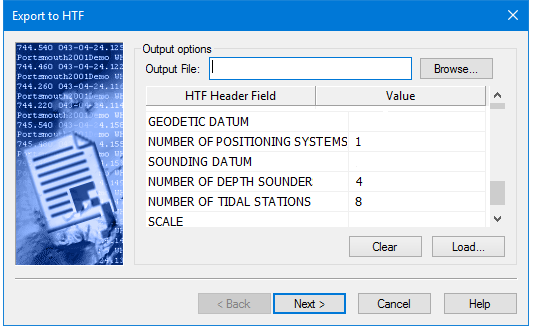
The first step of the Export Surface to HTF wizard uses the following dialog box.
Option | Description |
Output File | The name and location for the resulting HTF file. Entering a name without selecting a directory will automatically use the directory of the source. 1. Click Browse and specify a name and location. |
HTF Header Field/Value | The HTF Header Fields table is used to define values for each of the lines in the header of the exported HTF file. Any fields left blank will be populated as an asterisk. Values can be entered manually for each of the fields, or a template file can be loaded using the Load button. The values entered here will be reflected in the fields available and/or populated in the subsequent steps of the wizard. To enter the values manually: 1. Select a row in the Header Field table. 2. Type a Value for the field. |
Clear | Delete all values entered in the Value column. |
Load | Load an HTF template file (.htft) to automatically populate the Value column with values for the HTF header fields. |
Procedure
1. Select the dataset to be exported in the Layers window.
2. Select the Export Surface to HTF command.
3. Specify a name and location for the output file.
4. Populate the fields in the table either by manually entering values or clicking the Load button to load an HTF template file.
5. Click Next.
The Export Surface to HTF: Output Options step is displayed.