Menu | Edit > Status Flag > Auto Cursor |
Tool |
|
Menu | Edit > Status Flag > Auto Cursor |
Tool |
|
Auto Cursor Mode can be used to speed up the interactive process. This mode combines the selection and status flagging functions into a single procedure.
This function is available in the HIPS and SIPS Editors.
Related commands:
• Accept
• Reject
Interface
The status editing functions are activated on the toolbar.
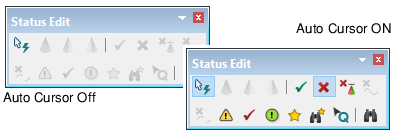
See Status Flags and Values for more information.
Procedure
1. Select the Auto Cursor command or click the button on the Status Edit toolbar.
2. Select an editing or status command from the toolbar.
The cursor changes shape to reflect the command you have chosen, for example: a “” for Accept, an “E” for Examined, “Q” for Query etc.
3. Press and hold the mouse button and drag the cursor over data in the Editor window so that the data is highlighted.
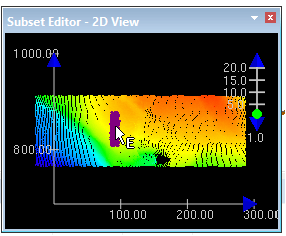
4. Release the mouse button.
The highlighted data will be set to the selected status you have selected. If you chose the Query command, the highlighted data will be displayed in the Selection window.
