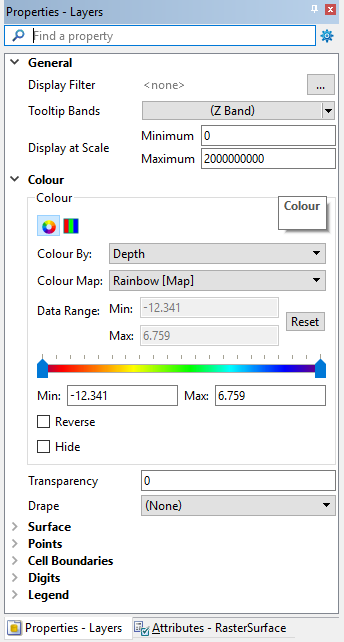
With data populated in the Display window, the display can be adjusted as needed to suit the data or a particular task.
The Properties window provides options for adjusting the display of the data. When a layer is selected in the Layers window, the Properties window is populated with properties for the selected layer.
The properties enabled in the window will differ based on the type of data the layer contains. Defining properties adjusts the display of data in the Display window; it does not alter the data itself. Property values must be re-entered each time the application is started.
The Colour properties, which are available for most data formats, allow the data to be coloured according to data values by applying a colour map or a colour range file. These files are created in the Colour Map Editor and the Colour Range Editor. The Data Range properties allow you to apply the colour range and colour map files to only a certain range of values in the source, rather than the entire dataset.
The Drape property, also in the Colour properties, allows an image to be draped over a raster data layer. See Draping Images for information on this property.
The Display Filter property for coverages and the Filter property for some vector formats allow the display to be filtered according to a user-specified filter expression. See Filter Expressions for information on creating expressions. When using these properties, only data that meets the filter criteria is displayed, but processes run on the data will be applied to all data in the source. To remove the filter and return all data to the display, right-click the expression in the filter property and select Clear.
When displaying a coverage as digits, the Quick Draw property can be applied. This property suppresses the display of digits within a certain distance of other digits, retaining the shoalest digit within the area, however, there is no guarantee of a shoal‑biased display. The distance between digits is controlled by the scale of the Display window. This property is enabled by default.
See Properties Window for information on the other properties that can be used to adjust the display of data in the 2D view.