Menu | Create (Add) > Layer By > Rule Wizard |
Tool |
|
Menu | Create (Add) > Layer By > Rule Wizard |
Tool |
|
Menu | Select > By Filter > Rule Wizard |
Tool |
|
Pop-up | Show/Edit Filter (Layers window) |
Pop-up | Add Layer(s) > Rule Wizard (Layers window) |
The Rule Wizard is used to create custom layers or select features using filtering rules. Each rule is defined by one or more conditions. You can apply any number of rules and save them for use on another dataset.
Rules are saved to the location specified for the Attribute Filter Rules option in Tools > Options. The new files are saved in XML format (.crfx) and can be reopened in another workspace or project or viewed in a text editor or XML-compliant Internet browser.
By default, multiple rules are evaluated using the AND operator. This means that all conditions must be true for a feature to be included in the selection. You can use the OR operator, which means that the feature will be included if any condition is true.
You can also modify a saved rule.
Related commands:
Interface
Create or Add Layer using the Rule Wizard uses this dialog box.
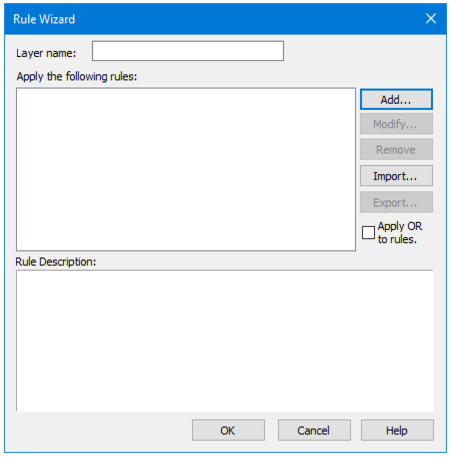
Available options on this dialog box are:
Interface Object | Description |
Layer name | A name for the new layer. Only available if you are using the Create Layer by Rule Wizard command. |
Apply the following rules | A list of rules. If no rules are displayed, you can add them using the Add or Import button. All rules in the list are applied when you click OK. To change the order in which rules are applied: 1. Click and drag the rule to a new location. You can add and remove rules from the list using the appropriate command buttons. |
Rule Description | The complete rule with all conditions. You can temporarily change existing conditions in this box by clicking the underlined terms, but you cannot add new conditions. |
Add | Create a new rule or add an existing rule to the list. 1. Click Add. The Rule Wizard is started. See Add Rule for details. Once added or designed, the rule is listed in the main Rule Wizard dialog box. |
Modify | Edit an existing rule. 1. Select the rule you want to modify and click Modify. The Rule Wizard is started. See Type of Rule for details. |
Remove | Removes the selected rule from the list of rules. The rule is not removed from the rule file unless you export it using the same name. 1. Select a rule in the list. 2. Click Remove. |
Import | Import an existing rule file. 1. Click Import. A file open dialog box is displayed. 2. Select the rule file and click Open. The file extension is All rules in the file are listed. |
Export | Export all listed rules to a rule file. 1. Click Export. A save as dialog box is displayed. 2. If necessary, navigate to your rule file folder. 3. Type a name for the rule file. The file extension is All listed rules are saved to the new rule file. |
Procedure
1. Click Add or select another appropriate Rule Wizard command.
The Rule Wizard dialog box is displayed.

