Menu | File > Import > Import as Update > Superselection/Selection |
Import a modified feature or group of features to replace an existing feature or features.
Features used as updates must be in |
This is used to replace outdated data or to import data from an outside agency. Features are matched using either the feature object ID or a unique identifier that is carried as an attribute.
Area, line, or point features can be imported. After importing line and area features, the geometry of shared features might also have to be updated.
Related commands:
Procedure
1. Open an external dataset.
2. Select the feature to be imported.
3. Select the Import as Update command.
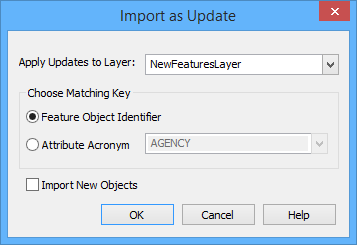
The Import as Update dialog box is displayed.
Option | Description |
Apply Updates to Layer | The layer to which the update will be applied. Select from the list. |
Choose Matching Key | Features are matched using either the feature object ID or a unique identifier that is carried as an attribute. Select from: • Feature Object Identifier • Attribute Acronym If you select Attribute Acronym, you must also select the acronym from the list. |
Import New Objects | On: Create new objects if updated objects do not exist in the original data. New objects are reported in the Output window as hyperlinks. Off: No new objects are created. |
4. Select the layer.
5. Select the matching key.
6. Set any other options.
7. Click OK.