Menu | Tools > Coverages > Modify > Shift Elevation Bands |
Pop-up | coverage layer > Tools > Shift Elevation Bands (Layers window) |
Apply a vertical shift to one or more bands (Depth, Height, etc.) of an existing raster surface or point cloud, to create an output surface with an increased or decreased Z value. This function can be used to update data or apply tide observations and water level data.
There are up to five shift types available, depending on your configuration:
• ASCII File: apply a file containing a grid of sounding datum heights
• Raster: apply a shift to a coverage using a raster surface
• Tide File: apply tide correction using data from a single station or multiple stations.
• Value: shift the entire coverage by a single value
• SPINE: apply water level data to a coverage
Each of the shift types is explained below, followed by the procedure for performing a shift.
With all shift types, you have the option of applying a vertical coordinate reference system to the output. The vertical component is added to the metadata of the surface, but does not apply any vertical transformations. The options available in the list are controlled by the vertical CRS database. This list can be edited using the Vertical Reference System Editor. For more information, see Vertical Reference System Editor.
ASCII File Shift
Points and elevation values in an ASCII file are used to apply a vertical shift to an area of a surface. Using the points in the ASCII file, a boundary is calculated to represent the area of the input surface that will shifted; the boundary can be the entire surface or only a portion of it. That boundary is then used to generate a temporary TIN based on the values in the ASCII file. The areas of the surface that are within the TIN will be shifted according to the TIN values.
If using an ASCII datum model file, the file must follow a specific format:
• The data must be in comma delimited format.
• The coordinate type must be Geographic and the format must be decimal degrees (Latitude, Longitude, Z).
• The hyphen symbol (-) must be used to designate coordinates in the Southern or Western hemispheres.
Values in the ASCII file are always Z positive down by design. If your ASCII file contains negative values, this will be reflected in the resulting shift values. For example, a file with a value of -10 applied to a surface with a depth of 20m, would result in a depth of 10m. If you were to apply that same file to a surface with a height of 20m, the result would be a height of 30m.
Raster Shift
The elevation values in a raster surface band can be used to apply a vertical shift to the values in another coverage. Shift values can be applied to a single elevation band, for example the Depth band, or to multiple elevation bands, such as Depth, Deep and Shoal bands.
Tide File Shift
Tide data is used to generate final depths relative to tide datum by subtracting the tide from the sounding depth. This correction provides a more accurate depth value for the surface. When available, tide correction should be applied to all surfaces before using them to create charts.
Observations are loaded from a tide file (.tid) or from a zone definition file (.zdf).
• Tide files contain observations from a single tide station. Applying this file will apply tide observations for the specified time period to the coverage. Tide files can be created or edited in a text editor. You would use this type of file if your surface falls entirely within a single tide zone.
• Zone definition files contain data that defines tide zones. Applying this file tells the application where the zones are and in turn, which observations to apply for the specified time period to the relevant portions of the coverage. Zone definition files are in ASCII format and can be edited in a text editor. You would use this type of file if your surface spans multiple tide zones.
Tide zones are closed polygons with tide, time and range corrections for a primary station, plus up to three backup secondary tide stations. |
Tide values for a particular area differ depending on the time of year and the time of day. You will need to specify the date and time of the data to apply when performing this type of shift.
Single Value Shift
A coverage can be shifted by a single value. If you select this option, the value you enter in the Shift value field is used to shift the selected bands. The direction of the shift depends on the current application settings for the Z-axis Convention attribute.
For example, if the elevation is 12 metres below the datum and a shift of (positive) 10 metres is applied:
• if the Z-axis Convention is set to “Down is positive,” the result is 22 metres below the datum.
• if the Z-axis Convention is set to “Up is positive,” the result is 2 metres below the datum.
SPINE Shift
The SPINE shift is achieved by connecting to the SPINE Water Level service provided by the Canadian Hydrographic Service (CHS). Requests are sent to the service for the water level values of specific sets of data points at specific times. Data is then returned for the requested points and times and applied to the matching points in the selected surface.
Water level data differs depending on the time of day. To ensure that you have accurate data, you must apply data for the correct time period. The SPINE service, at the time this document was written, supports any future date/time up to one month in the future. The time of day, which defaults to current time once a date is selected, must be entered in Universal Time Coordinated (UTC) format.
If your network is using a firewall, ensure that your Connection proxy settings are defined in Options before attempting to connect to the service. |
Because SPINE is an online service, you must provide valid credentials to access the service, as well as the URL of the service to which you want to connect, for example:
https://ws-shc.qc.dfo-mpo.gc.ca/spine.
This shift type is only available if the SPINE module is enabled. Refer to Modules for more information on modules.
Interface
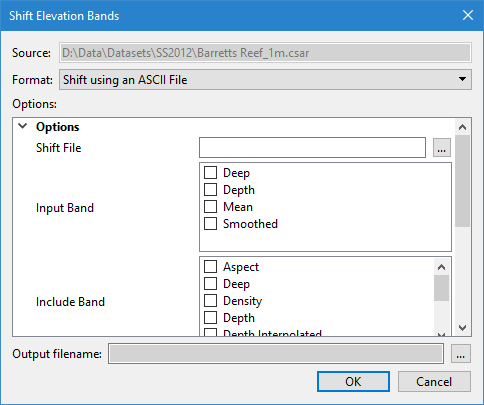
The Shift Elevation Bands command uses the following dialog box.
Option | Description |
Source | The input data for the process. The Source is defined by the coverage that was selected at the time the command was initiated. This field cannot be changed. |
Format | The type of shift to be applied. |
Options | The options for the selected shift type. The available options will differ based on the selection in the Format drop-down list. If you hover the mouse cursor over the name of an option, a brief description of the option is displayed in a tooltip. |
Output filename | The name and location for the output coverage file. |
Procedure
1. Select the source coverage in the Layers window.
2. Select the Shift Elevation Bands command.
The Shift Elevation Bands dialog box is displayed.
3. Select the Format of the shift type to be applied.
4. Define the necessary Options for the selected format.
5. Click the browse button (...) to define a name and location for the output surface.
6. Click OK.
A new coverage is created with the selected shift applied to the source data.