Tool |
|
Pop-up | Line/Area Digitizer > Grab |
Tool |
|
Pop-up | Line/Area Digitizer > Grab |
The Grab tool helps you create and edit line and area features using the existing edges of a “grabbed” feature. The edges of the grabbed feature are duplicated and used to form the feature currently being edited or digitized.
To use this tool, you must select the layer which contains the feature geometry you want to grab; this is called the snap/grab target. There are two methods for doing this:
• Select a layer from Snap/Grab Target list, which is provided in the Editing toolbar
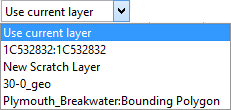
• Right-click a layer in the Layers window and select Set as Snap/Grab Target.
Only snappable layers will be available as snap/grab targets. If a non-snappable layer is selected in the Layers window, the command will not be provided in the pop-up menu and the Snap/Grab Target list will be disabled. By default, the currently selected layer is set as the snap/grab target and the drop-down list will read "Use current layer". If this setting is changed from the default to a specific layer, the selected layer is remembered until a different target is selected, regardless of the active layer in the Layers window.
Related commands: Click Within Edges
Procedure: Digitize Using Grab
1. Set the snap/grab target, if different than the current layer.
2. Select the layer on which to digitize the new feature.
3. Select the New Line Feature or New Area Feature command.
Menu | Create > New Feature > Line/Area |
Tool |
|
If the selected layer is defined to display multiple feature types, the Select Object Acronym dialog box is displayed and you must select the feature acronym and attributes for the new object. If the layer is specific to a single feature type, that feature acronym is used automatically and the attributes can be defined in the Attributes window. See Create for information on object acronyms and attributes.
4. If necessary, select an object acronym and define any necessary attributes.
The cursor switches to digitizing mode.
5. Select the Grab command.
The cursor changes again to indicate that the Grab tool is enabled. ( )
)
6. Select the edge in the target layer that you want to use for the new feature.
All vertices on the selected edge become active.
7. If you require more than one edge from the grabbed object, continue clicking along the edge until all necessary sections are selected.
With each click, the tool finds the shortest path from the last grabbed line, or digitized vertex on an edge, to the line nearest where you clicked.
8. To finish digitizing, right-click and select one of the following commands from the pop-up menu:
• Line Digitizer > End Line
• Area Digitizer > Close Area
The feature is created using the geometry of the grabbed object.
Procedure: Edit Using Grab
1. Set the snap/grab target, if different than the current layer.
2. Select the feature layer that contains the feature to be edited.
3. Select the feature to be modified (1).
4. Select the Edit Mode command.
Menu | Edit > Edit Mode |
Tool |
|
5. Select a vertex on the feature (2).
6. Select the Redigitize command.
Pop-up | Edit Line > Redigitize |
If the selected vertex is not a start or end point, it is removed when you use the Redigitize command. |
The line segment to be modified is indicated by a dotted line. This segment will be replaced with the grabbed feature plus any necessary connecting lines.
7. Select the Grab tool.
If you grab a line feature, a connecting line is drawn from the highlighted segment of the selected feature to the closest end point of the line grabbed.
If you grab an area feature, a connecting line(s) is drawn to the first created, or origin, point of the selected edge for that feature. The new area will only be included if the updated feature is valid (the connecting lines to the grabbed feature do not cross). Otherwise, when the Edit tool is deselected, the change to the selected feature is reverted.
8. Click an edge of the feature you want to grab (3).
9. To finish, deselect the Edit tool.
The feature is updated according to the geometry of the grabbed feature.

 ,
, 
