 0
0
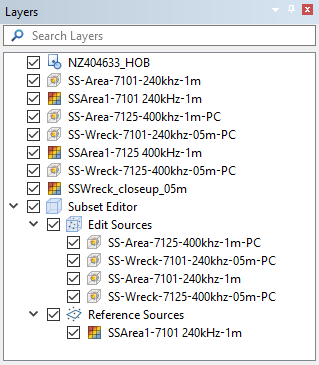
When a subset is loaded in the Subset Editor, Subset Editor layers are added to the Layers window.
Edit Sources
All datasets within the bounding box that can be loaded into the Subset Editor are listed under the Edit Sources layer. The check boxes beside these layers can be used to turn each data source on or off in the subset views. By default, all sources are turned on. If the bounding box is moved, the list of sources will be updated automatically, adding or removing the sources that are within the new range of the bounding box.
0
When multiple sources are turned on in the subset views, any edits made to the status flags will be applied to all selected points in all sources.
Datasets can be added to the list of sources manually, if needed.
1. To add a dataset to the list, right-click the dataset in the Layers window.
2. Select Add to Subset Edit Sources.
Reference Sources
The Reference Sources layer is used to display coverages as reference sources in the subset views. For example, the Depth or Elevation band of another coverage can be displayed as a reference when assessing points.
To use a coverage as a reference source:
3. Right-click the coverage that you want to use as a reference.
4. Select Add to Subset Reference Sources.
The selected band will be listed under the Reference Sources layer and added to the Subset Editor - 3D View. All layers added here are turned on by default. The check boxes beside the layers can be used to turn the reference sources on and off.
Reference sources can also be removed from the list if they are no longer needed. To remove a reference source:
1. Select the relevant layer under the Reference Sources layer.
2. Right-click and select Remove Reference Source.
The data source remains open in the application but is no longer displayed in the Subset Editor views or under the Reference Sources layer.
Subset Layer Properties
When the Subset Editor or Edit Sources layers are selected, the Properties window contains settings that can be used to adjust the display in the subset views. The description panel at the bottom of the Properties window provides a brief description of each available property.
Like the view in the Display window, the Colour properties can be used to colour the data in the Subset View windows according to any of the attributes present in the data, including colouring by source.
Menu | Tools > Editors > Subset > Load Subset |
Tool |
|
The Auto Load option for the Edit Sources layer allows automatic loading of subset data in the 2D and 3D Views when a subset area is created or changed. To create or adjust a subset area without immediately loading data, turn this option off. If you wish to load data while this option is disabled, draw the subset and select the Load Subset command.
The Filter Expression and Filter Geometry properties can be applied separately or together to filter the data displayed in the Subset View windows.
• The Filter Expression property launches the Expression Builder dialog box, which is used to define a filter expression. Only data within the subset bounding box that meets criteria of the specified expression will be displayed in the Subset View windows. See Filter Expressions for information on creating filter expressions.
• The Filter Geometry property is used when defining the subset area using the geometry of an existing area feature via the Click Within mode. With this property, you can specify whether the filter is inclusive or exclusive. Inclusive will display points that are within the geometry only, exclusive will display points that are outside the area but within the subset bounding box. There is also a None option that turns off the geometry filter, displaying all points within the subset bounding box.
Any properties defined will be remembered the next time the Subset Editor is launched.
