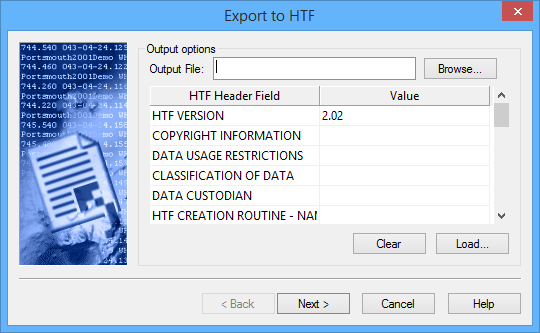
The first step of the Export Coverage to HTF wizard is used to define the output settings for the new file.
Interface
The following is the first step of the Export Coverage to HTF wizard.
Option | Description |
Output File | The name and location for the resulting HTF file. Entering a name without selecting a directory will automatically use the directory of the source. 1. Click Browse and specify a name and location. |
HTF Header Field/Value | The HTF Header Fields table is used to define values for each of the lines in the header of the exported HTF file. Any fields left blank will be populated as an asterisk. Values can be entered manually for each of the fields, or a template file can be loaded using the Load button. The values entered here will be reflected in the fields available and/or populated in the subsequent steps of the wizard. To enter the values manually: 1. Select a row in the Header Field table. 2. Type a Value for the field. |
Clear | Delete all values entered in the Value column. |
Load | Load an HTF template file (.htft) to automatically populate the Value column with values for the HTF header fields. |
Procedure
1. Select the dataset to be exported in the Layers window.
2. Select the Export Coverage to HTF command.
3. Specify a name and location for the output file.
4. Populate the fields in the table either by manually entering values or clicking the Load button to load an HTF template file.
5. Click Next.
The Export Coverage to HTF: Step 2 step is displayed.