Menu | View > Refresh |
Tool |
|
Key | <F5> |
SVP files can be opened and viewed as a layer in the Display window.
To view the profiles:
1. Select the Open command.
Menu | File > Open |
2. Browse to the SVP file that was applied to the lines, and click Open.
3. Click Refresh.
Menu | View > Refresh |
Tool |
|
Key | <F5> |
The open file displays the various profile locations as a symbol with a text label.
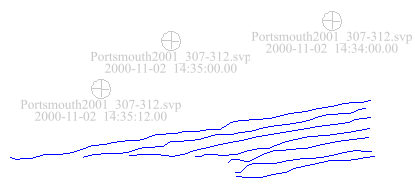
To change the display of the SV profile colour and symbology:
4. Select the SVP profile file in the Layers window.
5. Open the Properties window.
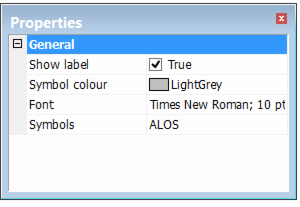
6. Set Show label to “False” to hide label, leaving the symbol displayed.
7. Click in the Symbol colour field to pick a new colour for the symbol and label from the chart.
8. Change the Font style and size by selecting from the drop-down list.
9. The default feature code for the symbol can be changed by selecting another from the drop-down list in the Symbols field.
