Menu | Edit > Areas > Dissolve |
Remove a selected area and have its geometry filled by a surrounding unselected area.
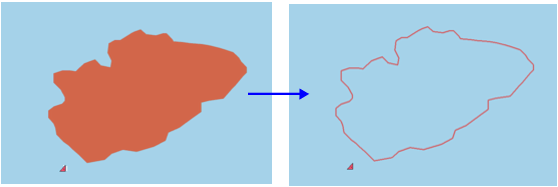
The Dissolve Areas command can be used on one or more areas, although the results will vary depending on the position of the areas in relation to other features:
• If the area being dissolved is bordered by multiple features or intersects other features, a hole is left.
• If multiple areas are dissolved, they are all filled by the next unselected surrounding area.
• If multiple areas are dissolved and there is no surrounding area, a hole is created.
Related commands:
Procedure
To dissolve areas:
1. Select one or more areas.
2. Select the Dissolve Areas command.
The area is dissolved. Depending on its position, it is filled by a surrounding area or a hole is created.
Example
In this example, a DEPARE area is dissolved and replaced by the surrounding DEPARE area. There is no hole left, which would happen if the feature was deleted. The depth contour (DEPCNT) is not removed.