Menu | Process > Compute > Separation Model |
Generate a separation model based on traditional tide inputs as well as other vessel dynamics. The model is saved in a CSAR format and opened as a background layer. The layers making up the model will be displayed in the Layers window, and a CSAR file will be created in the output folder.
A separation model will be created using all of the data in the project, or only the selected data if “Selection” is set in the Input Source field.
Interface
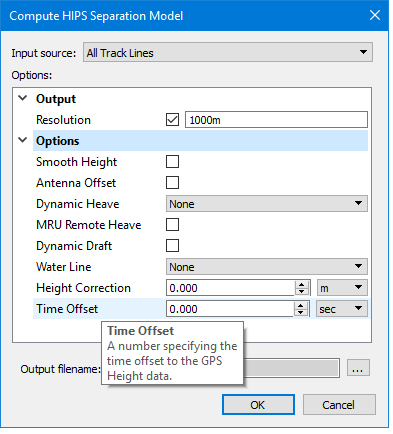
The Compute Separation dialog box is used to create the separation model.
Options
Option | Function |
Input Source | If a track line or lines was selected, you have the option to chose Selection, or All Track Lines from the drop-down list. |
Resolution | Set a resolution value in meters in the Resolution field. |
Smooth Height | Select check box to apply smoothing to GPS height. |
Antenna Offset | Select check box to apply an offset of the GPS antenna from the reference point. |
Dynamic Heave | Select heave or delayed heave, if available. Default is None. |
MRU Remote Heave | Select check box to apply remote heave resulting from vessel roll/pitch on an offset-mounted MRU. |
Dynamic Draft | Select check box to apply dynamic draft (as a result of interpolating the draft table in the HIPS Vessel File (HVF), or as stored in HIPS as time series data). |
Water Line | Select Vessel or Realtime to apply the waterline offset in the HVF. Default is None. |
Height Correction | Type an amount as a static offset to the GPS antenna. |
Time offset | Type a value in seconds to apply as a time offset. |
Output file name | Click Browse to set or select an output file. |
Procedure:
1. Open a project containing Tide and GPS Height data.
2. Activate the Ship Track Lines layer in the Layers window.
3. [Optional] Select a line or lines of data to compute the model only for data in those lines.
4. Select the Compute Separation Model command.
In the Compute Separation Model dialog box:
5. Set appropriate Options to apply them in the model.
6. Click OK.