Menu | Tools > Limits and Boundaries > Wagon Wheel Filter |
Tool |
|
Menu | Tools > Limits and Boundaries > Wagon Wheel Filter |
Tool |
|
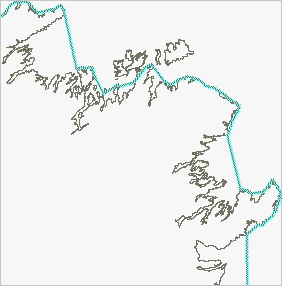
This command extracts the contributing points of a given limit from an existing coastline or low water line and outputs a line joining these contributing points. This line can be used as a simplified baseline source in other LBM tools.
The filter’s name is derived from its functionality as it duplicates the effect of running a wagon wheel over the coastline or low water line. The radius of the wheel equals the value of the limit line. Points that are touched by the wheel are called contributing points because they contribute to the limit line. A large wheel touches fewer points than a small wheel, therefore baselines created using comparatively large radiuses will be smoother than those using smaller limits. This is similar to the Interactive Baseline command except that it is automatic.
Interface
The Wagon Wheel Filter command uses the following dialog box.
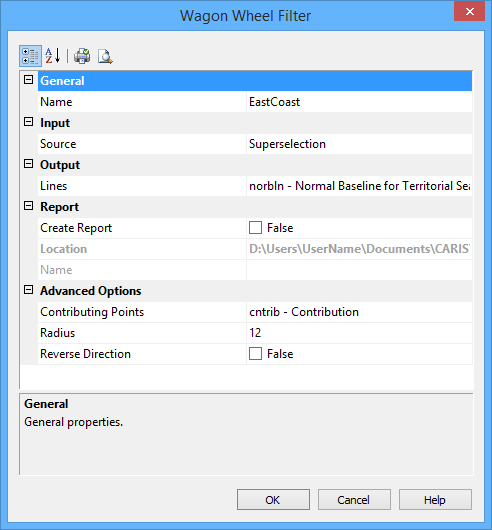
Group | Option | Description |
General | Name | The name of the layer that will contain the new line. Select from the list. This can be the same as the source layer. |
Input | Source | The name of the layer that contains the baseline. Select from the list. |
Output | Lines | Select the feature acronym and set the attributes of the output line. The list contains the following options: • A list of recent objects, if any: Select this to reuse a previous object. • Template: Select this to define the feature acronym and attributes using a predefined template. This will launch the Select Template dialog box, from which you select a template, if any are available. • Objects: Select this to launch the Select Object dialog box from which you can manually select an acronym and define the attribute values. |
Report | Create Report | Select this option to generate a text file report of the contributing points. |
Location | The location in which to create the report file. By default, the report is saved in the folder: This can be changed by clicking the Browse button (...) and selecting a new location. This location will be remembered the next time the tool is launched. | |
Name | The name to assign to the report file. | |
Advanced Options | Contributing Points | Symbols marking the contributing points will be created. Select the feature acronym and set the attributes of the contributing points. The list contains the following options: • A list of recent objects, if any: Select this to reuse a previous object. • Template: Select a template using the Select Template dialog box. • Objects: Define the feature acronym and attributes using the Select Object dialog box. |
Radius | The distance to the limit for which you are determining the contributing points. This distance is also the geodetic radius of the wagon wheel. The default is 12 nautical miles, but the value will display using the Distance setting in the Display Units Options tab. The last value set is remembered. | |
Reverse Direction | The limit is generated on the right side of the line, based on the starting point and the direction in which it was digitized. • False: The starting point of the line is not changed. • True: The starting point of the line is changed and the direction reversed. If the resulting line is too landward, undo the command and try again with this option enabled. |
Procedure
1. Select a coastline, low water line or baseline.
2. Select the Wagon Wheel Filter command.
The Wagon Wheel Filter dialog box is displayed.
3. Enter a radius.
4. Set any other necessary options.
5. Click OK.
A line is generated along the coastline, low water line or baseline. This line includes all the contributing points used to calculate the limit corresponding to the specified radius.