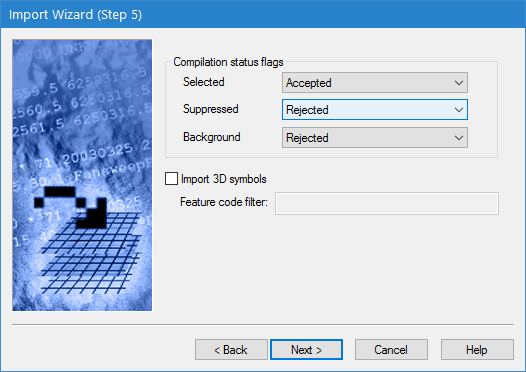
This step of the Import Wizard is used to define NTX-specific settings.
Interface
The NTX Options step of the Import Wizard is shown below.
Option | Description |
Compilation status flags | The Compilation status flags allow you to assign a status flag to nodes as they are imported based on their compilation status. |
Accepted: The flag to assign to nodes with the Accepted compilation status. | |
Suppressed: The flag to assign to nodes with the Suppressed compilation status. | |
Background: The flag to assign to nodes with the Background compilation status. | |
Import 3D symbols | Enable this option to filter symbols during import if the source data contains multiple feature codes for symbols, but only specific codes are required. The Feature code filter field will be enabled to specify the symbols to be included in the import. |
Feature code filter | The feature code(s) of symbols to be included in the import. Symbols with any other feature code will be filtered out. 1. Enter the feature code of each symbol to be imported, separated by a comma or semicolon. In order for the feature codes of the symbols to be maintained as an attribute in the output file, the Feature_Code attribute must be selected for import in the last step of the wizard. |
Procedure
1. Select a status flag for each compilation status.
2. [Optional] Click the check box to enable the Import 3D symbols option and then enter the feature code(s) for the symbols to be included during import.
3. Click Next.