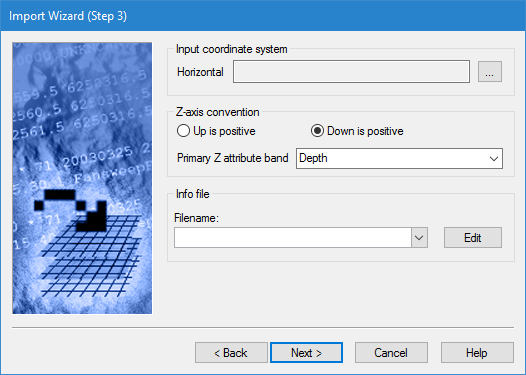
The third step in the Import Wizard is used to define settings for the data being imported.
Interface
Step 3 of the Import Wizard is shown below.
Option | Description |
Input coordinate system: Horizontal | The coordinate reference system (CRS) of the input data. This field is only enabled if you are importing XYZ data. If the data is in a different format, this field automatically uses the CRS from the source file and cannot be changed. 1. Click the browse button (...) to launch the Select Coordinate Reference System dialog box and select a CRS. See Change Coordinate Reference System for information on this dialog box. |
Z-axis convention | The Z-axis convention of the source data. Select Up is positive if the source data contains elevation values that are positive up. Select Down is positive if the source data contains depth values that are positive down. |
Primary Z attribute band | The name to assign to the primary Z attribute band, which can be defined to reflect the nature of the data. The name “Depth” is selected by default. Only the following types of characters can be used in this field: • Latin characters • numeric values • hyphens • underscores • spaces (although not at the beginning or end of the name) 1. Select a name from the drop-down list, or type a custom name in the field. |
Info file filename | The Info file field is only displayed if importing XYZ data. The format information file is an XML (.info) format file that contains position and attribute information for an XYZ dataset. See Working With Format Information Files for more information. Data can be imported using an existing format information file, or you can create a new file. The new file can be created using a completely blank table, or by editing an existing file. Format information files are created/edited in the ASCII Info File Editor. The Editor can be launched from the ASCII Info File Editor command, or using the options in the Filename field. For more information on the ASCII Info File Editor, see ASCII Info File Editor. The selected format information file will be validated based on the version of the file using one of the XSD schema files in the following location:
If any settings in the file do not conform to the standards defined in the schema, an error message will be displayed when you click Next to go to the next step in the wizard. 1. Select a format information file for the import using one of the methods below: • Select • Select • Expand the Filename drop-down list and select from a list of recently used files. If necessary, click Edit to launch the ASCII Info File Editor and edit the file. All controls in the editor will be populated using the format information file and source data. |
Procedure
1. If importing XYZ data, click the Horizontal browse button (...) and selected a CRS.
2. Select the Z-axis convention of the source data.
3. Select or enter a name for the primary Z attribute band.
4. Select a format information file option from the Filename drop-down list:
5. [Optional] If editing an existing file, click Edit and make the necessary changes in the ASCII Info File Editor.
6. Click Next.