This section provides some examples of commonly used supersede rules. These rules are meant to be used to resolve conflicts when combining coverages.
Example 1: Greatest Creation Date
The Greatest Creation Date rule looks for the coverage with the most recent creation date and time.
To create this rule:
1. In the Combine Coverages dialog box, click the New button.
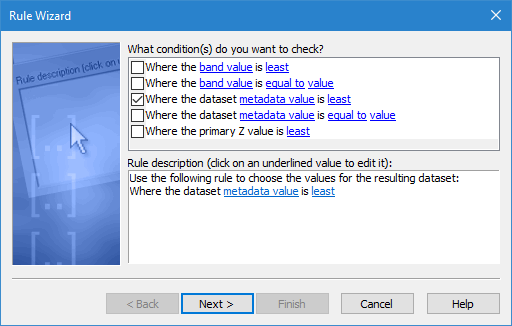
The Rule Wizard - Rule Conditions dialog box is displayed.
2. Select the condition Where the dataset metadata value is least.
3. Click the metadata value hyperlink and select CreationDate from the drop-down list. Click OK.
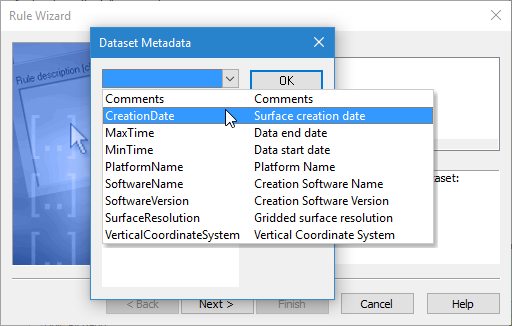
You are returned to the Rule Wizard dialog box.
4. Click the least hyperlink to change the operator to greatest.
5. Click Next.
The Rule Wizard - Rule Name dialog box is displayed
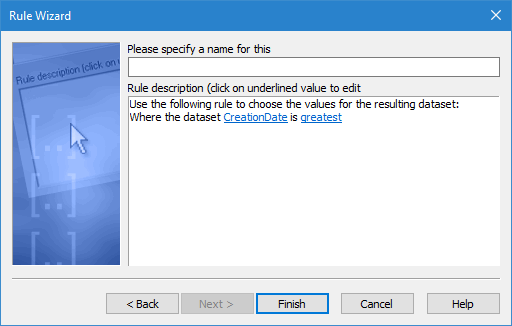
6. Enter Greatest Creation Date as the name of the rule.
7. Click Finish.
The new rule is added to the list of rules for conflict resolution.
Example 2: Lowest Uncertainty
The Lowest Uncertainty rule will select the coverage with the lowest uncertainty values in its data.
To create this rule:
1. In the Combine Coverages dialog box, click the New button.
The Rule Wizard - Rule Conditions dialog box is displayed.
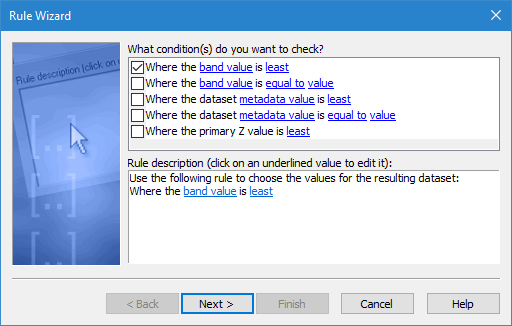
2. Select the condition Where the band value is least.
3. Click the band value hyperlink, select Uncertainty from the drop‑down list, and click OK.
You are returned to the Rule Wizard dialog box.
4. Click the least hyperlink to change the operator to greatest.
5. Click Next.
The Rule Wizard - Rule Name dialog box is displayed.
6. Enter Lowest Uncertainty as the name of the rule.
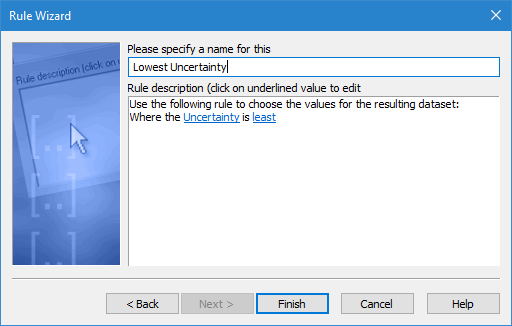
7. Click Finish.
The new rule is added to the list of rules for conflict resolution.
Example 3: Interpolated
The Interpolated Data rule is used to include or exclude interpolated data in the output coverage.
To create a rule to exclude interpolated data:
1. In the Combine Coverages dialog box, click the New button.
The Rule Wizard - Rule Conditions dialog box is displayed.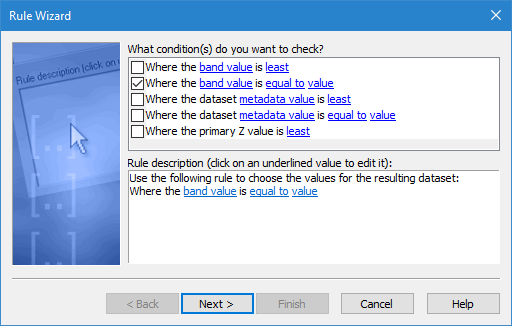
2. Select the condition Where the band value is equal to value.
3. Click the band value hyperlink and select an Interpolated band from the list. Click OK.
4. Click the equal to hyperlink to change the operator to not equal to.
5. Click the value hyperlink.
The Value dialog box is displayed
6. Enter 1 as the value, and click OK.
Data is either interpolated or not. If it is interpolated, the attribute value will be 1, if not, the value will be 0. All data with a 1 as the value for Interpolated will be excluded. |
The dialog box closes and the Rule Wizard is redisplayed (the entered value is displayed in the rule).
7. Click Next.
The Rule Wizard - Rule Name dialog box is displayed.
8. Enter Exclude Interpolated Data as the name of the rule.
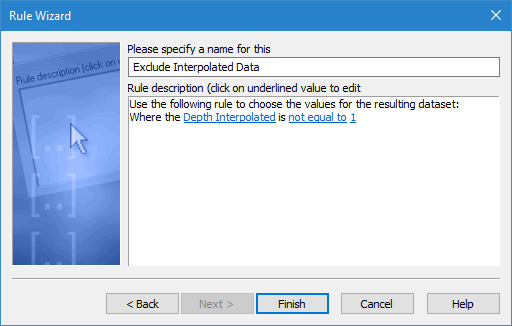
9. Click Finish.
The new rule is added to the list of rules for conflict resolution.
Example 4: Technique of Sounding
When combining database coverages, the Technique of Sounding rule can be used to look for the coverage with data collected using a specific sounding technique.
To create this rule:
1. In the Combine Coverages dialog box, click the New button.
The Rule Wizard - Rule Conditions dialog box is displayed
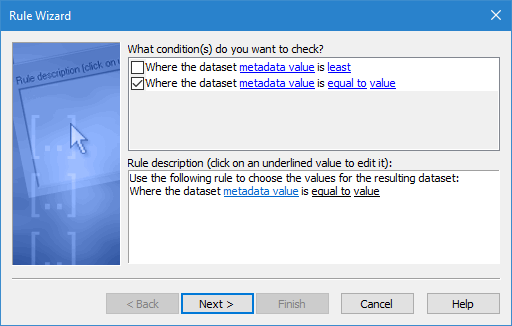
2. Select the condition Where the dataset metadata value is equal to value.
3. Click the metadata value hyperlink, select Technique of Sounding (TECSOU) from the list, and click OK.
You are returned to the Rule Wizard dialog box.
4. Leave the hyperlink for equal to as is.
5. Click the value hyperlink.
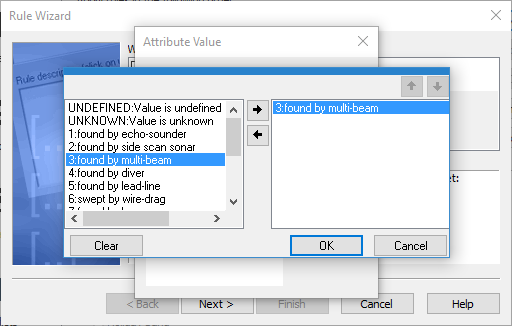
6. From the list, select 3:found by multi-beam and click Done.
7. Click OK.
You are returned to the Rule Wizard again.
8. Click Next.
The Rule Wizard - Rule Name dialog box is displayed.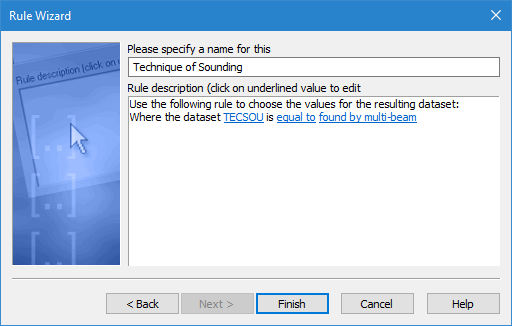
9. Enter Technique of Sounding as the name of the rule and click Finish.
The new rule is added to the list of rules for conflict resolution.
Example 5: Primary Z is Least
The Primary Z is Least rule looks at the primary elevation band of each coverage, and determines which has the lowest values. This is useful if the coverages being combined use different names for the primary elevation bands.
To create this rule:
1. In the Combine Coverages dialog box, click the New button.
The Rule Wizard - Rule Conditions dialog box is displayed.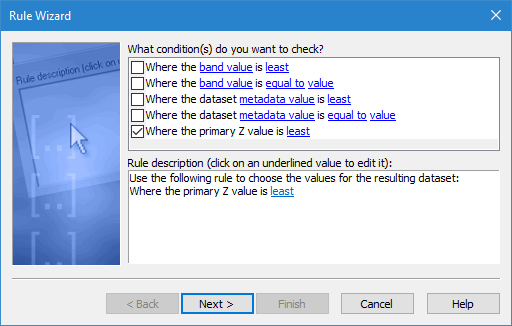
2. Select the condition Where the primary Z value is least.
3. Ensure that the least hyperlink is indeed set to “least”.
4. Click Next.
The Rule Wizard - Rule Name dialog box is displayed.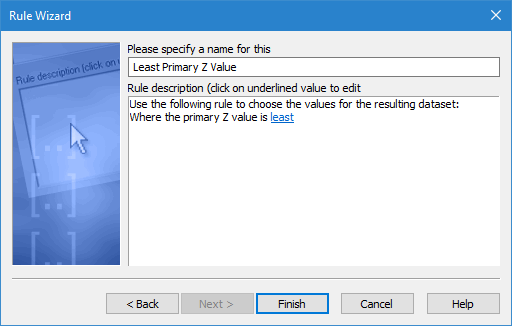
5. Enter Least Primary Z Value as the name of the rule and click Finish.
The new rule is added to the list of rules for conflict resolution.