Menu | Tools > Features > Soundings Selection |
Survey data contains so many soundings that they cannot all be displayed legibly on a chart or map. Sounding selection enables users to make a meaningful selection of soundings to be displayed.
Soundings are selected from a gridded surface or mosaic or from a point cloud, and the selection of soundings saved on a feature layer. The selection is made using either radius or overplot removal criteria, and these criteria are either shoal- or deep-biased.
The selection criteria are:
• Radius: selects only the (shoal or deep) soundings within a set distance
• Overplot Removal: selects only certain soundings in a dense data set so that they can be plotted without overlapping.
Conflict resolution
When conflicts are encountered during selection, either the shoalest soundings or the deepest soundings will be included as set in the selection criteria. For example, if you select Shoal bias, and two soundings overlap, the shoalest of the two will be selected.
A template of selection criteria can be created, loaded and re-used for sounding selection.
Selected Soundings uses the values from an attribute layer of the selected dataset as the height source for the sounding selection.
Interface
The Sounding Selection command opens the Sounding Selection wizard which is used to set criteria and options for the selection of soundings.
Procedure
1. Create or open a feature layer.
2. Open and select a surface layer. This activates the Sounding Selection command.
3. Select the Sounding Selection command.
Step 1 of the Sounding Selection Wizard is displayed.
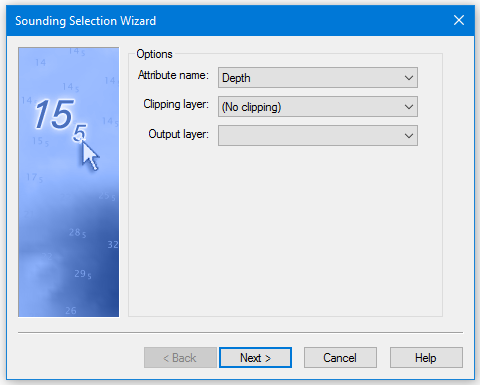
Sounding Selection Wizard Step 1
The wizard uses the values from an attribute layer of the selected surface as the height source for Sounding Selection. If a layer was selected in the Layers window when the wizard was opened, that layer will automatically be displayed in the Attribute name field.
This layer will be remembered the next time Sounding Selection is run. However, if a different layer is selected in the Layers window the selected layer will be used instead of the remembered layer.
Soundings can also be filtered using a polygon created on a feature layer as a cvrage area.
Procedure:
1. [Optional] Select another surface attribute layer from the drop-down list.
[Optional] Click on the Clipping Layer list and select a feature layer containing a cvrage.
2. From the Output layer list select the feature layer that you opened or created as the destination for the selected soundings.
3. Click Next.