Pop-up | Line Digitizer > Line From Image
Area Digitizer > Line From Image |
Follow lines from an image to create a vector line or area.
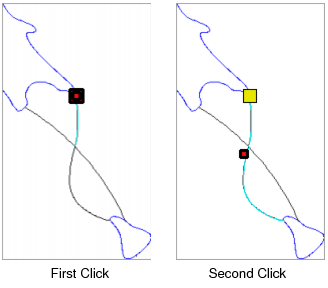
This command creates a vector line on a feature layer by tracing a row of raster pixels in a backdrop file. The vectorizing tool detects the colour of the first pixel clicked and follows the same pixel colour as you click to create vertices for the line. Each time that you click, the vector line follows that colour in the raster image until it reaches a decision point. A decision point can be a break in the raster line or an intersection. At this point you must click on the section of the line that is to be followed next and the line will continue along the selected path.
Vertices will only be displayed for the points that were manually clicked during this process. Once the line is complete, additional vertices will be automatically populated as needed to create the line.
Procedure
1. Open a raster image.
2. Open or create a feature layer and select it in the Layers window.
The new feature will be added to this layer.
3. Select a Create New Line or Create New Area command.
Menu | Create > New Feature > Line/Area |
Tool |
|
4. Set the raster image as the snap/grab target using the drop-down list in the Select toolbar.

5. Select the Line From Image command.
6. Click at the start of the line or area in the raster image that you wish to trace.
The line will be generated until it reaches a decision point.
7. Click at the next portion of the raster line.
8. Continue until the entire line is vectorized.
Pop-up | Line Digitizer > End Line Line Digitizer > Close Line |
Key | <End> <Home> |
Pop-up | Area Digitizer > Close Area |
Key | <End> |
9. End or close the line or area.
The new feature is created.
